Conducting Telehealth visits using an AI scribe has never been easier. Empathia AI has been the industry first in providing a fully integrated Telemed feature on the app. Now, this powerful telemed feature is available on the web, while also supporting other platforms like Doximity, Zoom, Jane and Doxy.me You can easily connect with patients by phone or video while Empathia’s AI Scribe captures and documents the encounter.
Why Use Telemed with Empathia?
- One-Stop Workflow: Audio or video-call without juggling multiple devices.
- Automatic Documentation: Conversations are transcribed and turned into SOAP or consult notes.
- Flexible Platforms: Works on mobile or web and captures audio from other platforms like Zoom, Doximity, Jane, Doxy.me, and more.
- Privacy Built In: Ability to set up your Clinic caller ID and ensure patient privacy is maintained.
- Redial in One Tap — Recent History keeps the phone number, encounter setup, and patient context ready to go.
How to Conduct Televisits from Empathia's Web Portal?
1. Complete Audio & Video Calls directly from Empathia
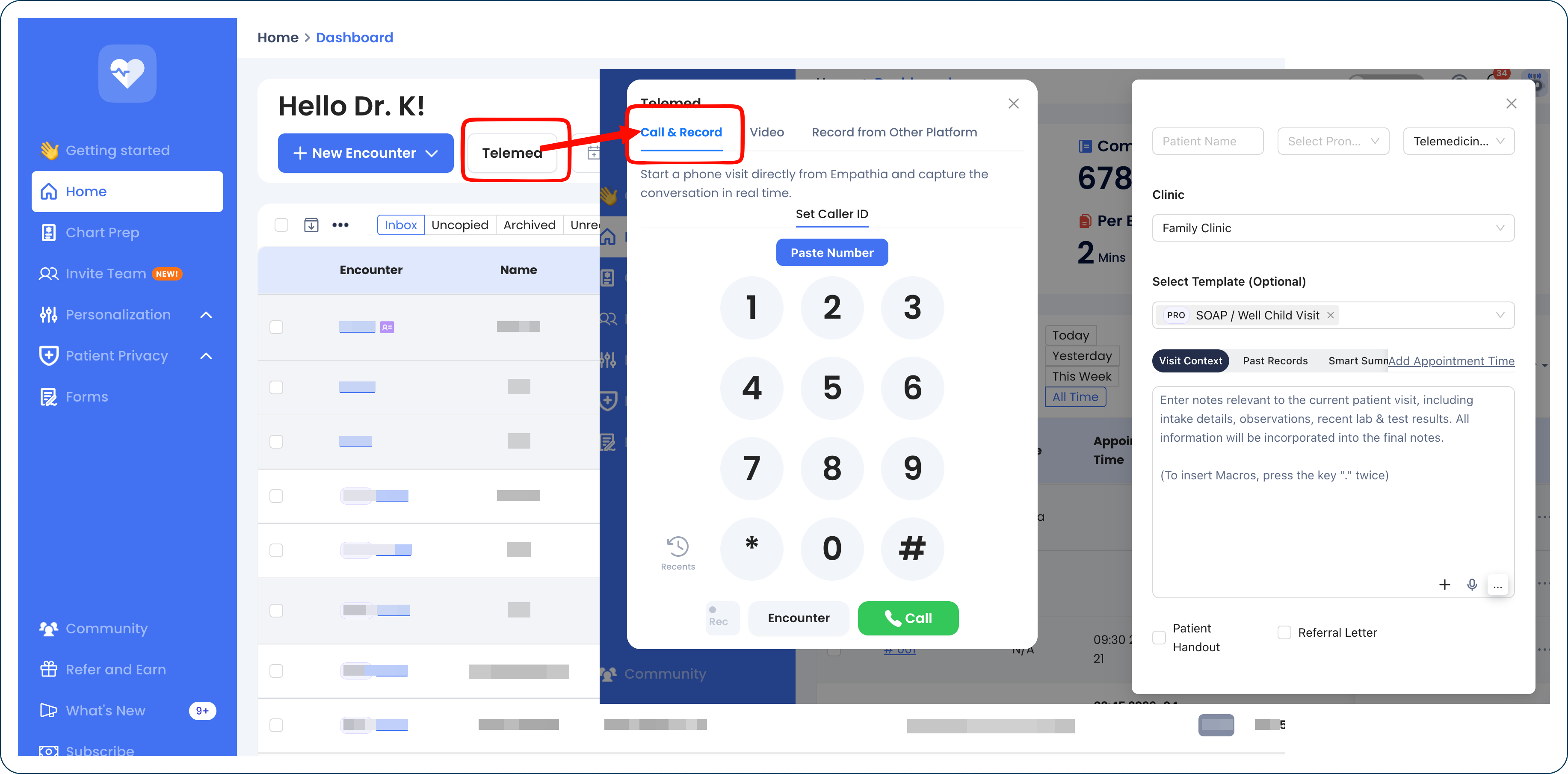
- To complete a call directly from Empathia, click on the Telemed Button, then select Call & Record (for Audio only). Type your patient’s phone number directly on the dial pad and enter any relevant information in the encounter context. Once the call ends, the system will automatically start generating notes based on the audio from your conversation.
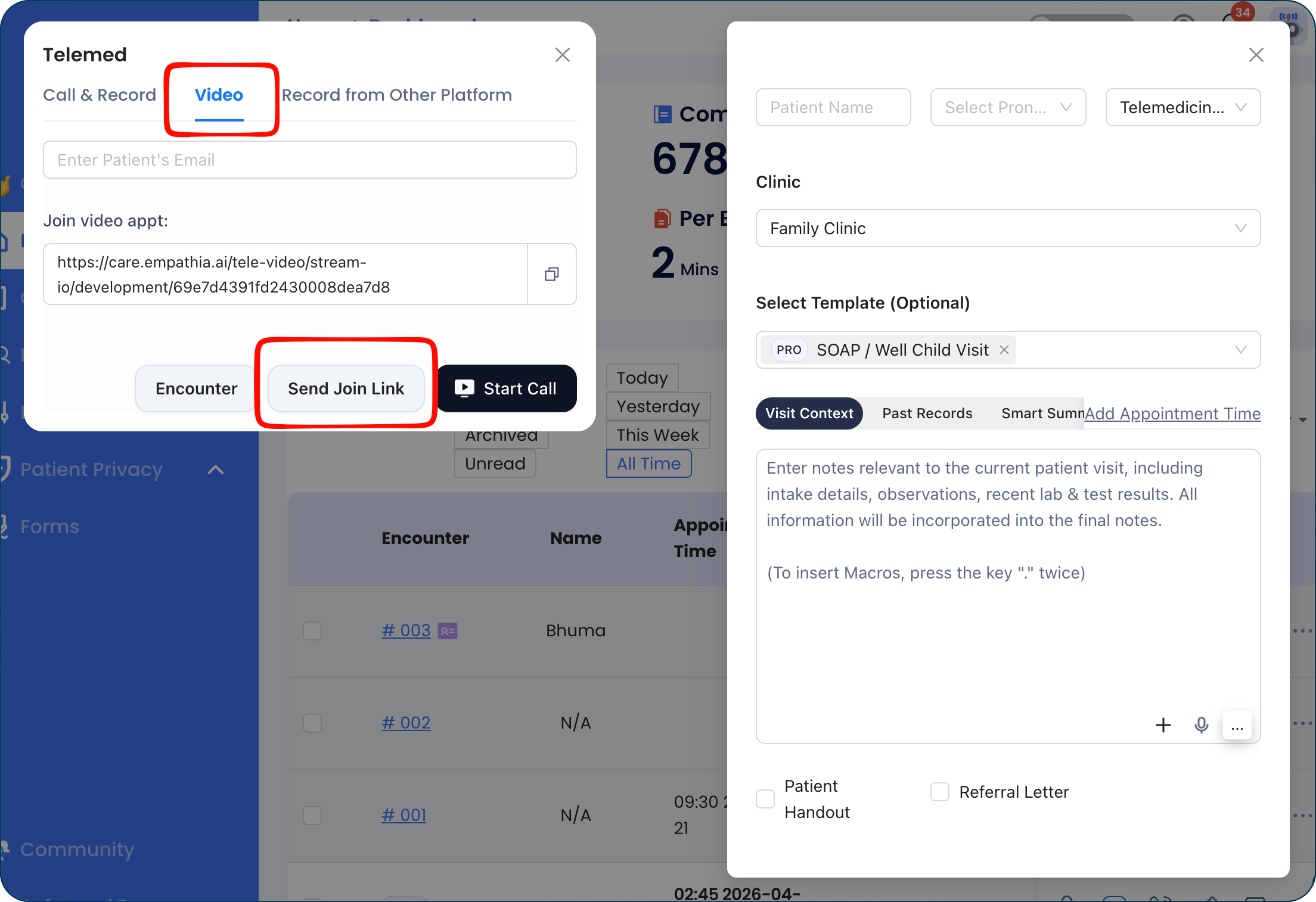
- To start a Video call, click on the Video tab. You can send the video link via email directly from Empathia and start the video call. Once you Stop & Save, a note will be auto-generated based on the conversation.
2. Record from another platform using Share screen function
- You have the option to record calls conducted on other platforms. From the Telemed Button, select the tab "Record from Other Platform". Click on Share Screen to share the televisit window.
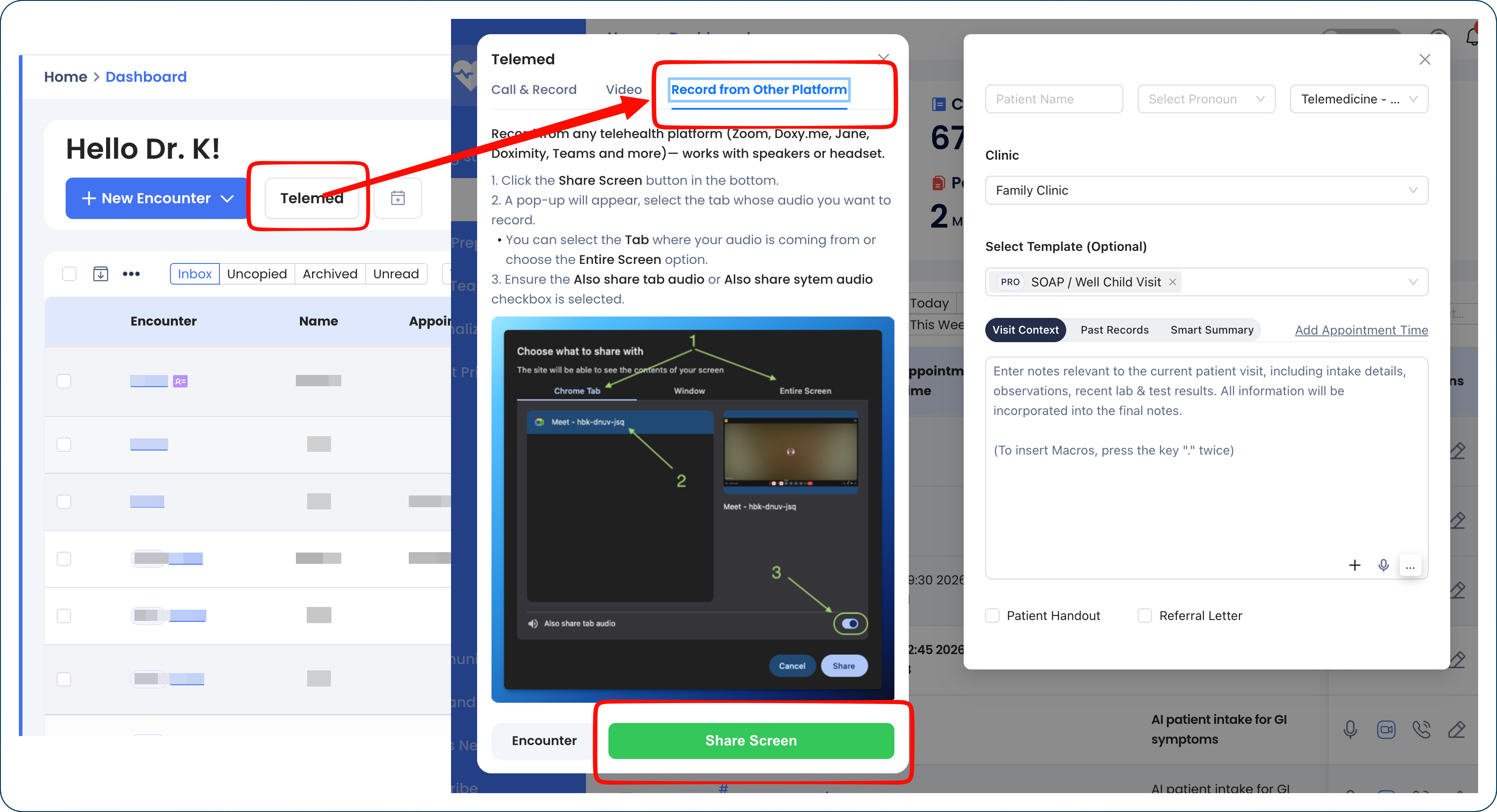
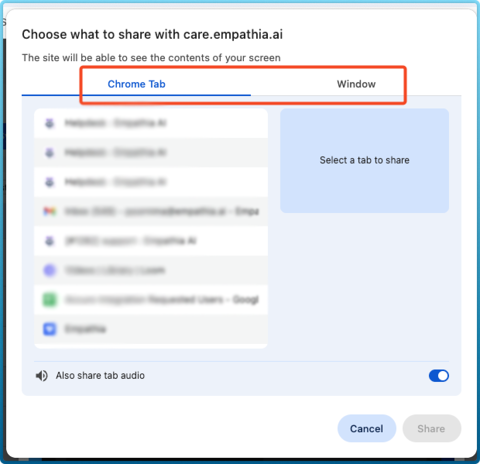
- When you click on Share Screen you will be given a choice to share a Google Chrome Tab, an entire Window or your entire screen (Mac OS users can only share web browsers & NOT desktop apps). Always remember to turn on the "Share tab Audio" when sharing your screen.
How to Call Patient Directly within Empathia App?
- Log into the mobile app and tap the "Telemed" tab at the bottom of the screen.
- Choose between a Phone Call Visit or a Video Visit.
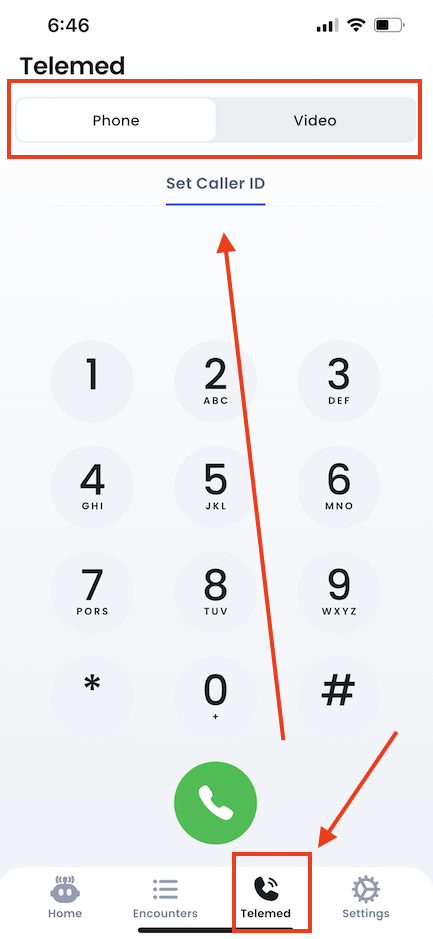
- Enter your patient’s phone number or copy the number directly on the dial pad
- Once the call ends, the system will automatically start generating notes based on the audio from your conversation.
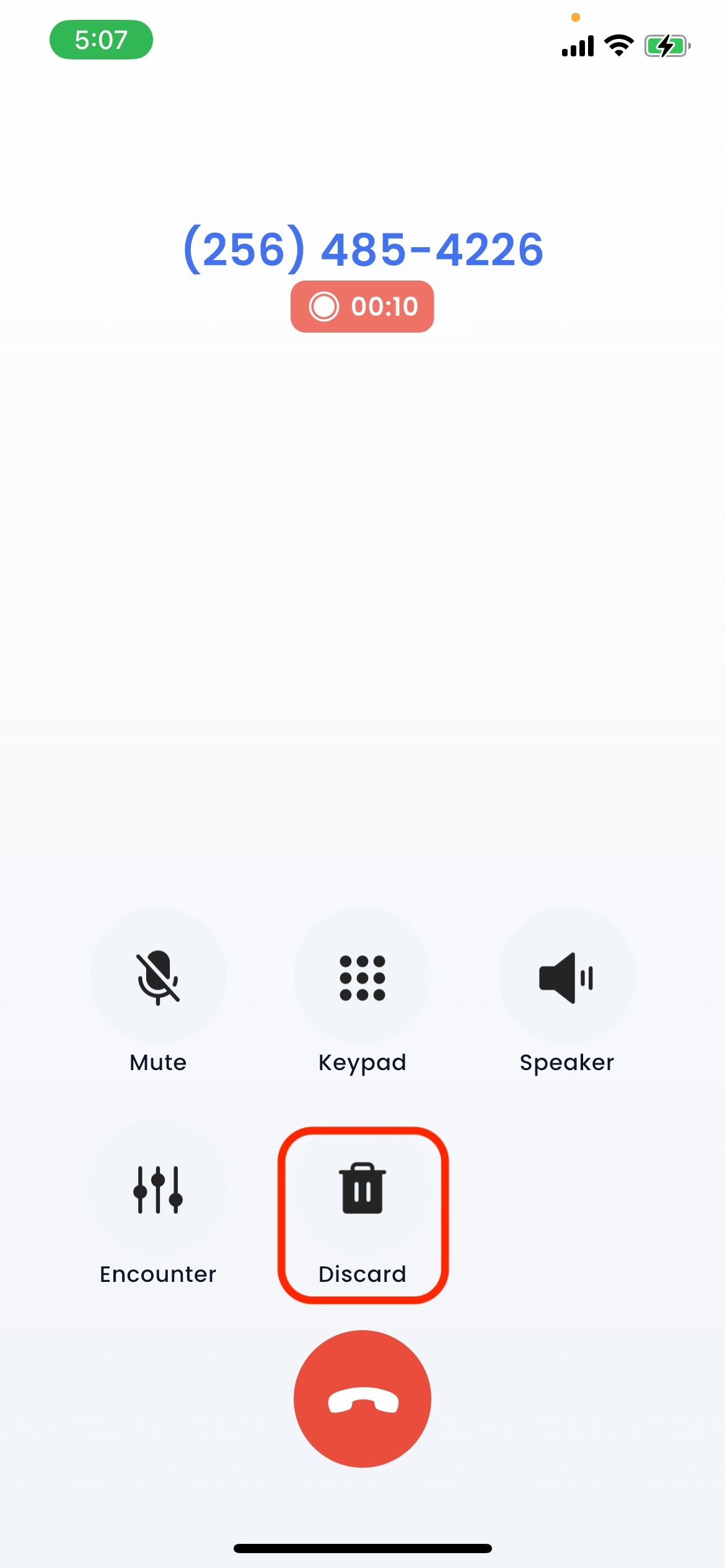
- If the patient does not answer the call or does not consent to using the AI scribe, you can simply Discard the Recording.
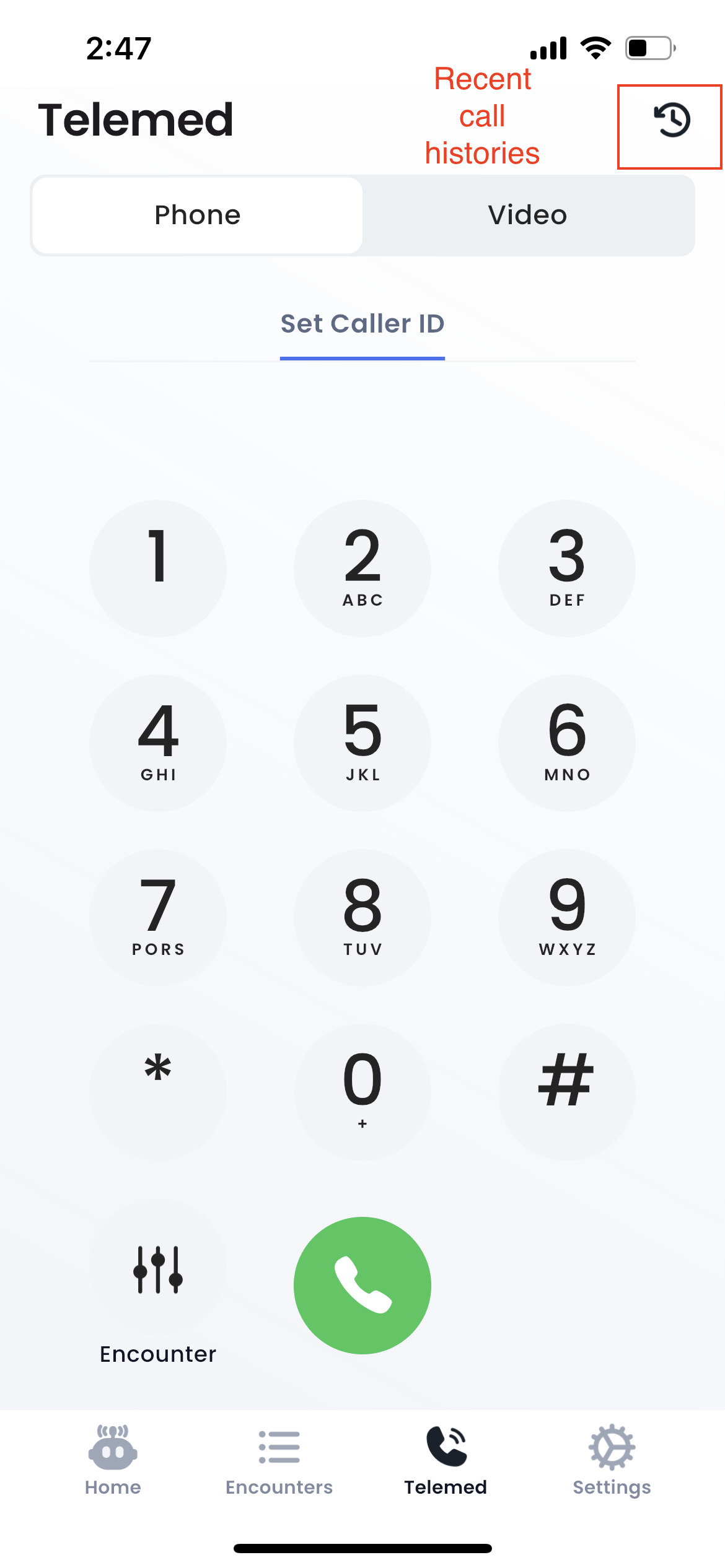
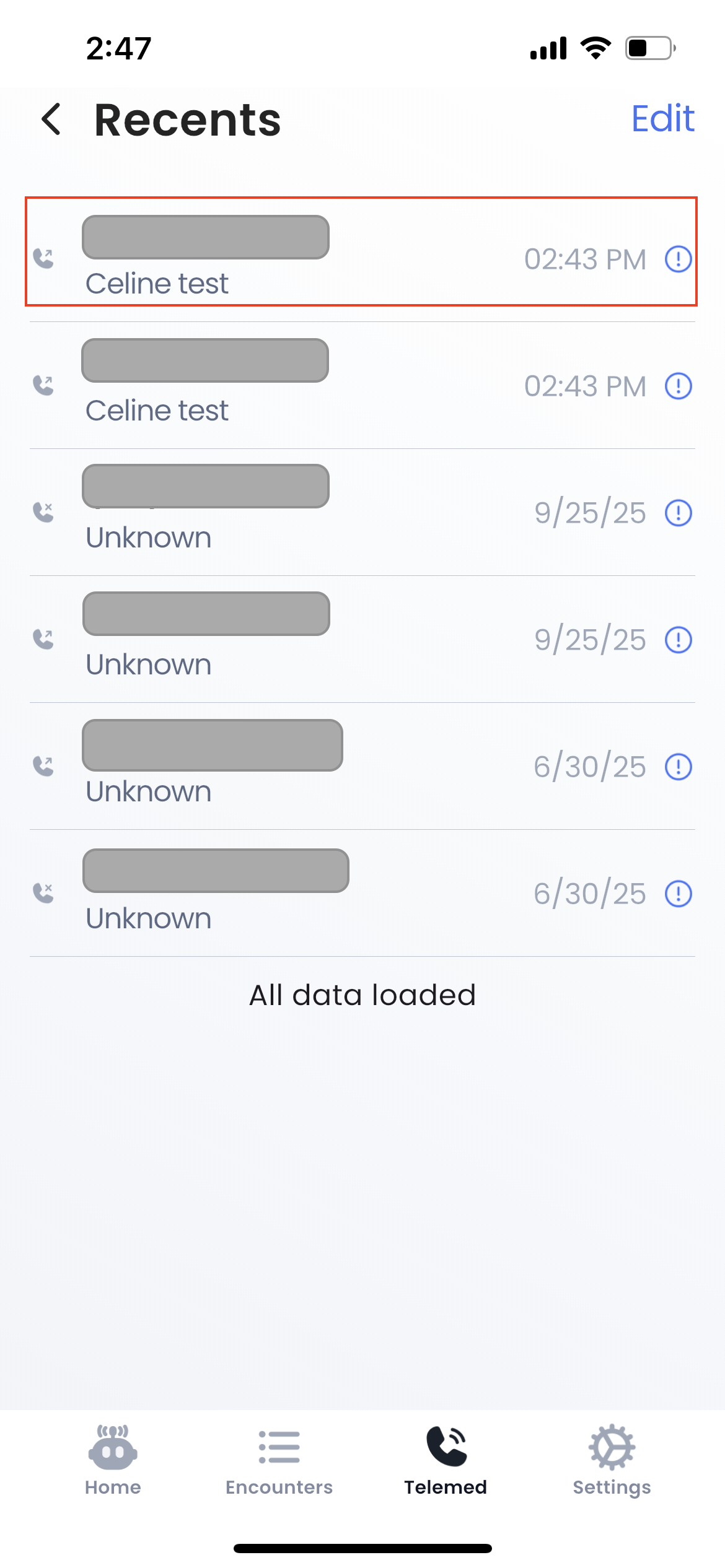
- If the patient didn’t answer, you can easily redial from your Recent call history — the phone number, selected template, and patient context are all saved for you.
 Learn more about additional telemed features like in this detailed article -
 - how to set up your Caller ID
- how to add a clinic phone tree
- how to add encounter details
- how to complete video calls on the app
Best Practices and Tips
1. Launch your telehealth platform on the web for optimal audio capture.
2. Ensure to gather patient consent for using the AI scribe along with the telehealth mode of visit
FAQs
1. Is the video recorded during my virtual visit?
A. No, only the audio is captured from the visit & used for transcription purposes. All audio transcriptions are stored in compliance with HIPPA & PIPEDA regulations.
2. Can I use my headset during virtual visits?
A. YES, you can complete all virtual visits on our web & app on both speaker or with headsets.
3. Do I need to reconfigure my caller ID for telemed on the web?
A. No, if you have set up your caller ID on the app, it will auto-populate on the web portal and vice versa
4. Is this feature available to all users?
A. Yes, this feature is available to our Premium subscribers and Premium trial users.
Was this article helpful?
That’s Great!
Thank you for your feedback
Sorry! We couldn't be helpful
Thank you for your feedback
Feedback sent
We appreciate your effort and will try to fix the article