Overview:
Booking a Telehealth video visit is now faster and clearer for both doctors and MOAs. The appointment time now lives right inside the video panel, doctors can be assigned in advance, and patients receive a personalized email with their doctor, clinic, and appointment time. Let's take a look into how.
Booking a Video Visit
Both MOAs and doctors can book a video visit.
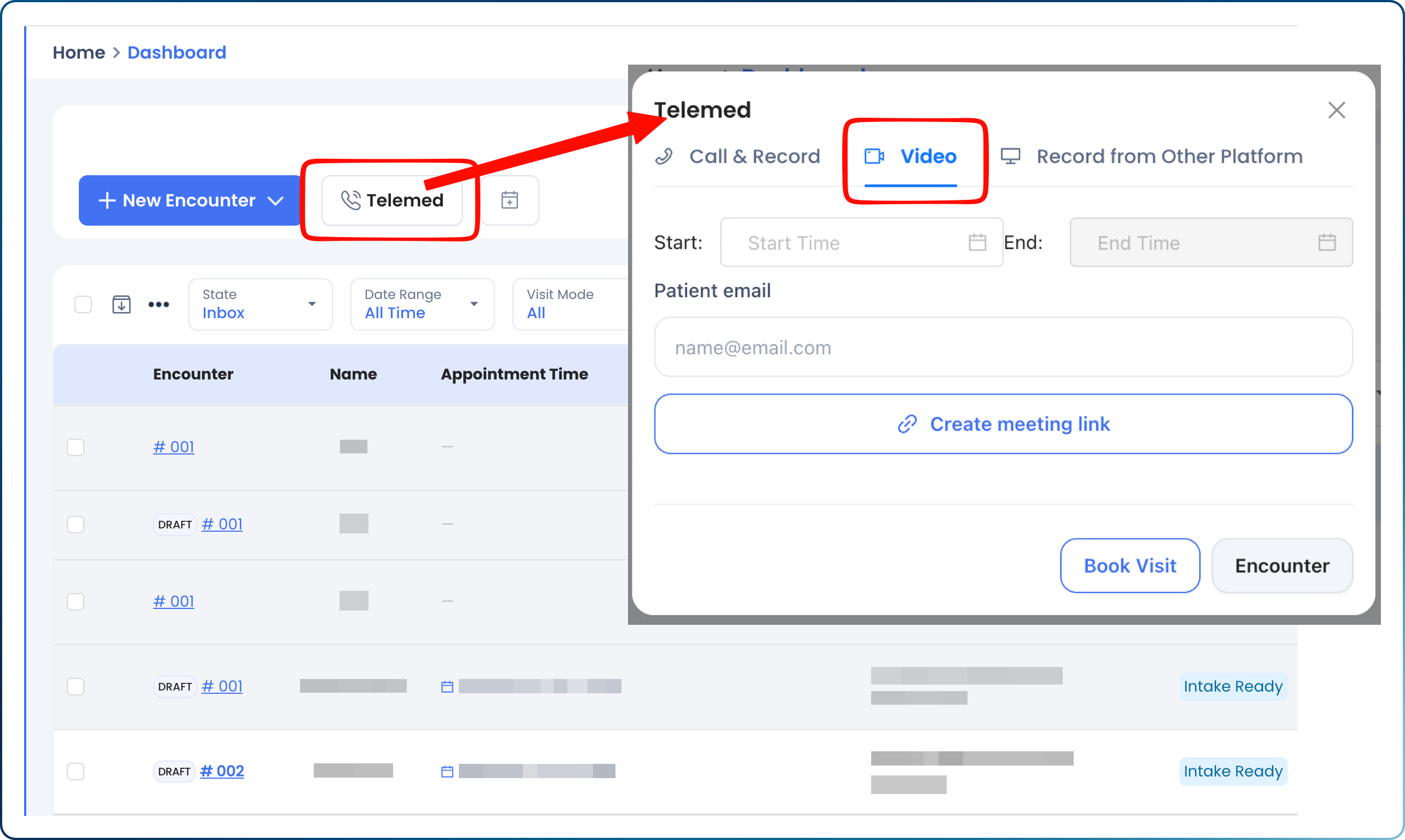
- Click the Telemed button next to the blue New Encounter button and select the Video tab.
- Enter the future appointment time for that patient
- Enter the patient's Name and email, click Create Meeting Link and then Send Join Link - this will send out the email with the joining details to the patient.
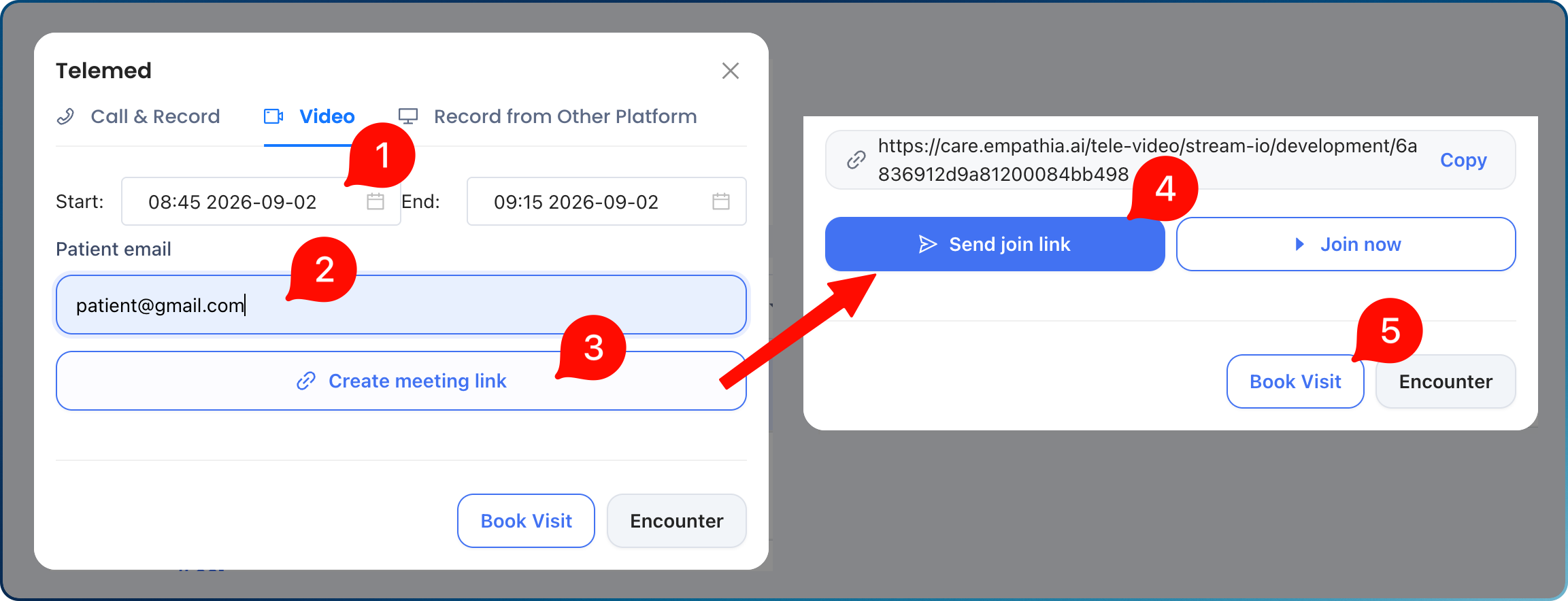
4. Lastly, click on Book Visit to save the visit to your Encounter List.
Assigning a Doctor (MOA only)
If you're an MOA booking on behalf of a doctor:
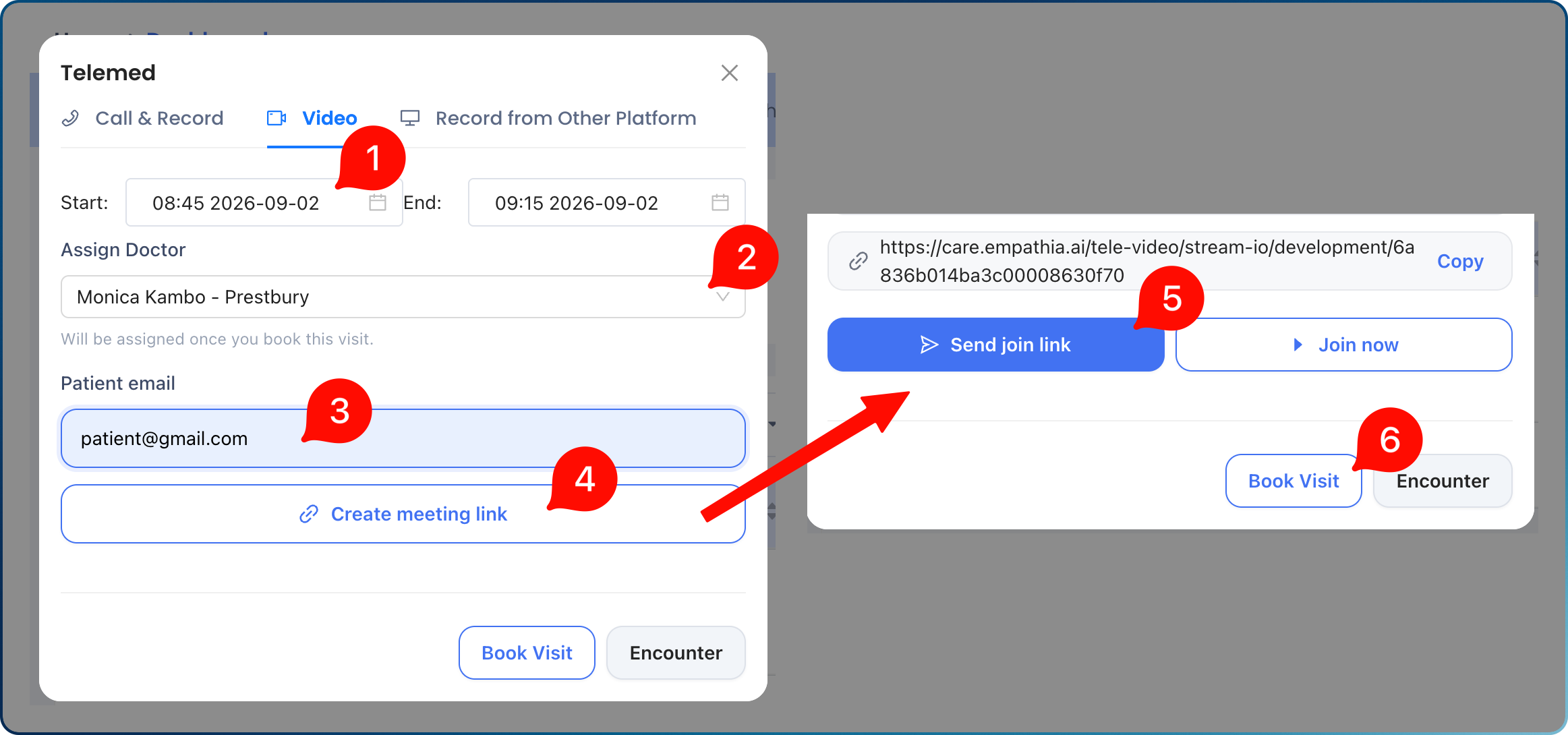
- In the Telemed video panel, use the Assign Doctor field to pick the doctor for this visit.
- Doctors are listed by clinic, so make sure the correct clinic is selected first.
- Click Send Join Link to send the confirmation email to the patient.
- Click the Book Visit button to notify the assigned doctor and send the scheduled appointment to the doctor's encounter list.
What the Patient Receives
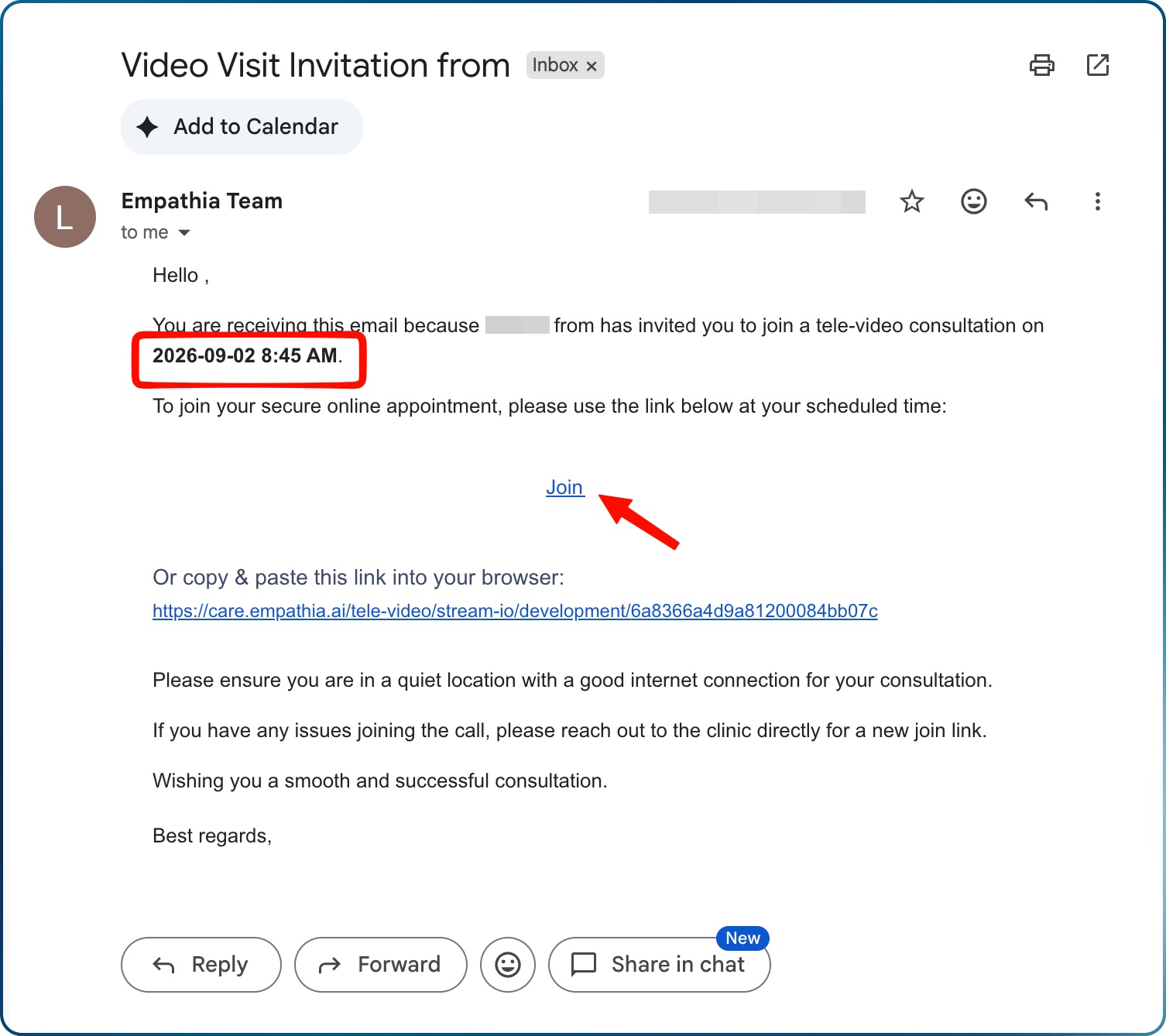
Once you click Book Visit, the patient gets a personalized email that includes:
- The doctor's name & clinic
- The future appointment time & the link to the video call.
Finding Your Video Visits — Encounter List
The Encounter list makes it easy to see what's scheduled:
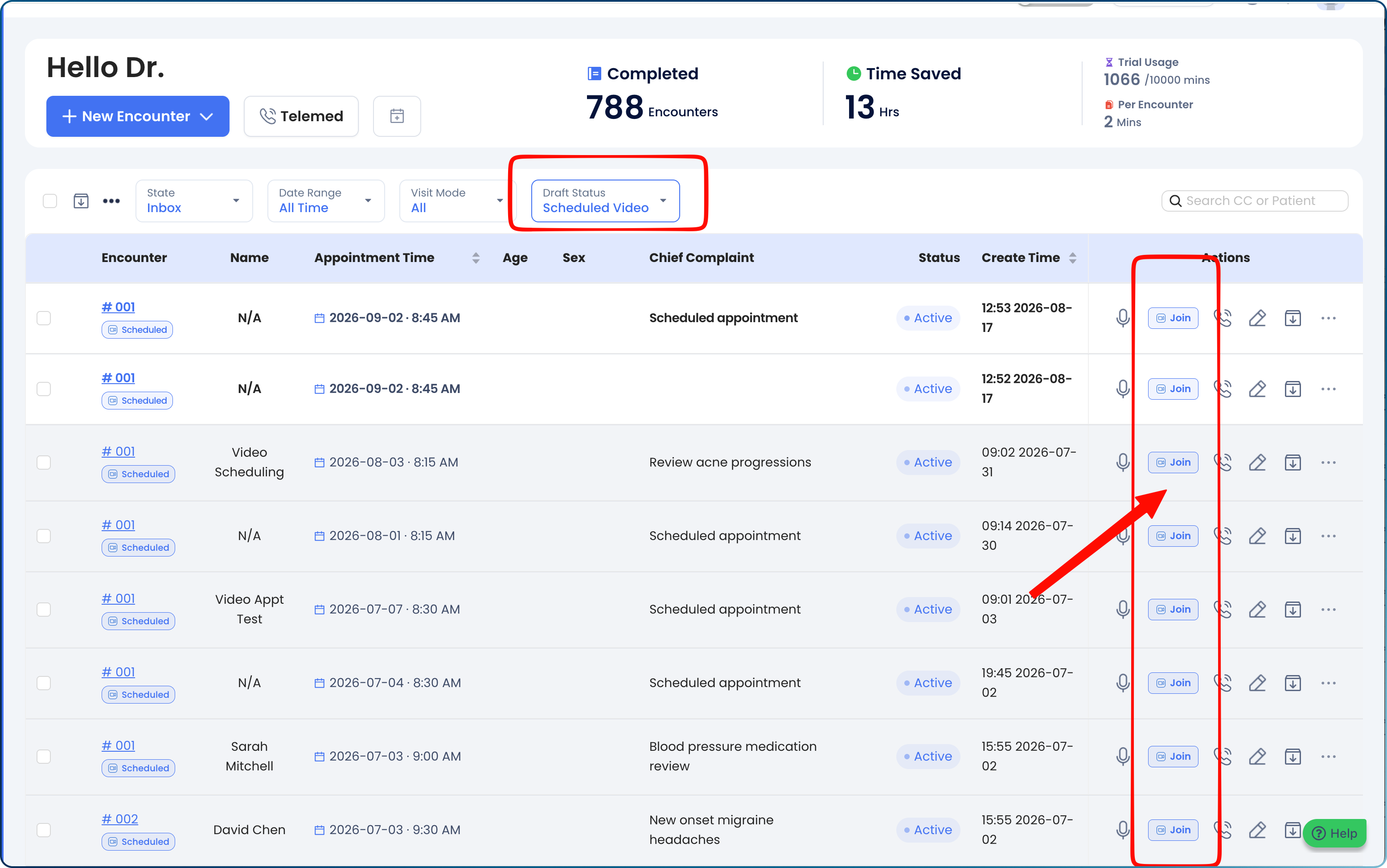
- Go to your Encounter list and filter by Scheduled Video
- Look for the Join button next to any scheduled video visit — this takes you straight into the call.
- Conduct your encounter as usual.
FAQ:
1. Can an MOA book a visit without assigning a doctor?
A. No — if an MOA is booking, a doctor must be assigned before clicking Book Visit so the correct person is notified.
2. Can I change the appointment time after booking?
A. No. Once a visit is booked, the doctor and time are locked. If details need to change, cancel and create a new booking.
3. Will the patient know who they're seeing before the call?
A. Yes — the confirmation email includes the assigned doctor, clinic, and appointment time.
Troubleshooting Common Issues
- Patient says they didn't get the email: Use Resend join link on the booked visit rather than creating a new booking.
- No Encounter created after the call: Please ensure that you (physician) joins the call from your Empathia portal, using the telemed video button. DO NOT use the link sent to the patient as it will not record the encounter to your Empathia portal.
If you have any further questions please reach out directly to support@empathia.ai
Was this article helpful?
That’s Great!
Thank you for your feedback
Sorry! We couldn't be helpful
Thank you for your feedback
Feedback sent
We appreciate your effort and will try to fix the article