Generate, review, and send prescriptions directly from Empathia
Empathia’s Prescription + eFax feature helps turn medication decisions discussed during a patient encounter into a structured prescription that you can review, edit, print, or fax directly to a pharmacy.
Instead of manually re-entering medication names, dosages, directions, and patient information into a separate prescription pad or fax portal, Empathia can use the context of the encounter to help prepare the prescription for you.
How to access Prescription + eFax
Prescription generation is available directly from the patient encounter.
Open the patient encounter.
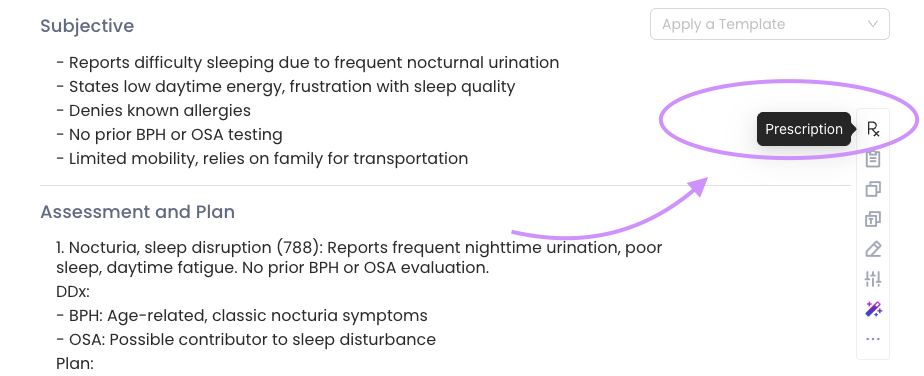
Select the Rx icon from the vertical toolbar on the right side of the encounter.
The Prescription panel will open alongside your note.
Because the Prescription panel is opened directly from the encounter, Empathia can use relevant information from the consultation when preparing medication orders.
First-time setup
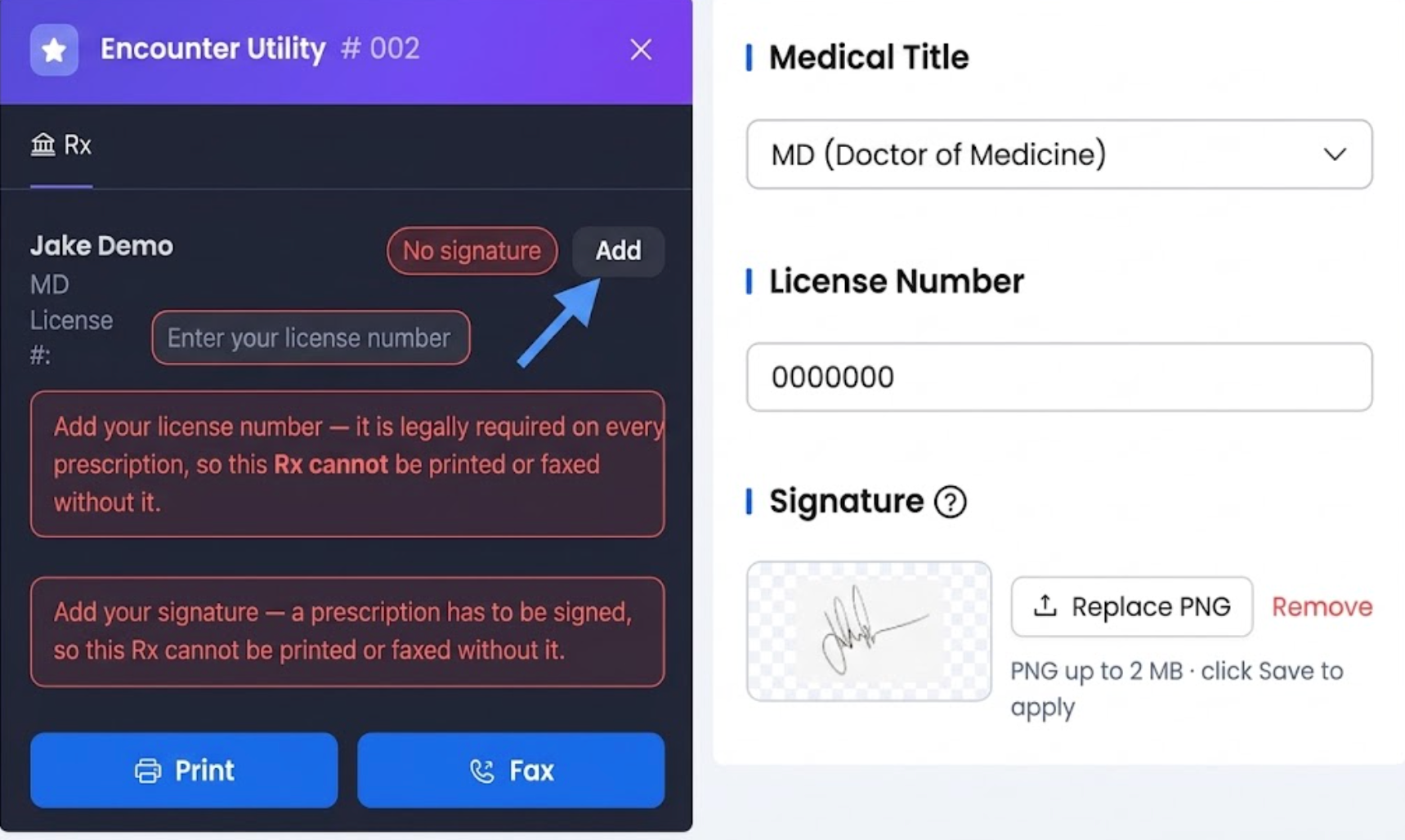
Before generating your first prescription, you will need to add your license number and signature.
These details are used when preparing your prescription.'
Add your license number
You can enter your license number directly from the Prescription panel during the initial setup.
Once saved, the information can be reused for future prescriptions.
Add your signature
Your signature is uploaded from your Profile settings.
From the Prescription panel:
Select Add next to Signature.
You will be directed to your Profile page.
Upload your signature.
Return to the patient encounter when finished.
Tips: If you already have a digital signature saved in your EMR, one simple option is to take a screenshot of the signature, save it as a PNG file, and upload it to Empathia.
Add the patient information
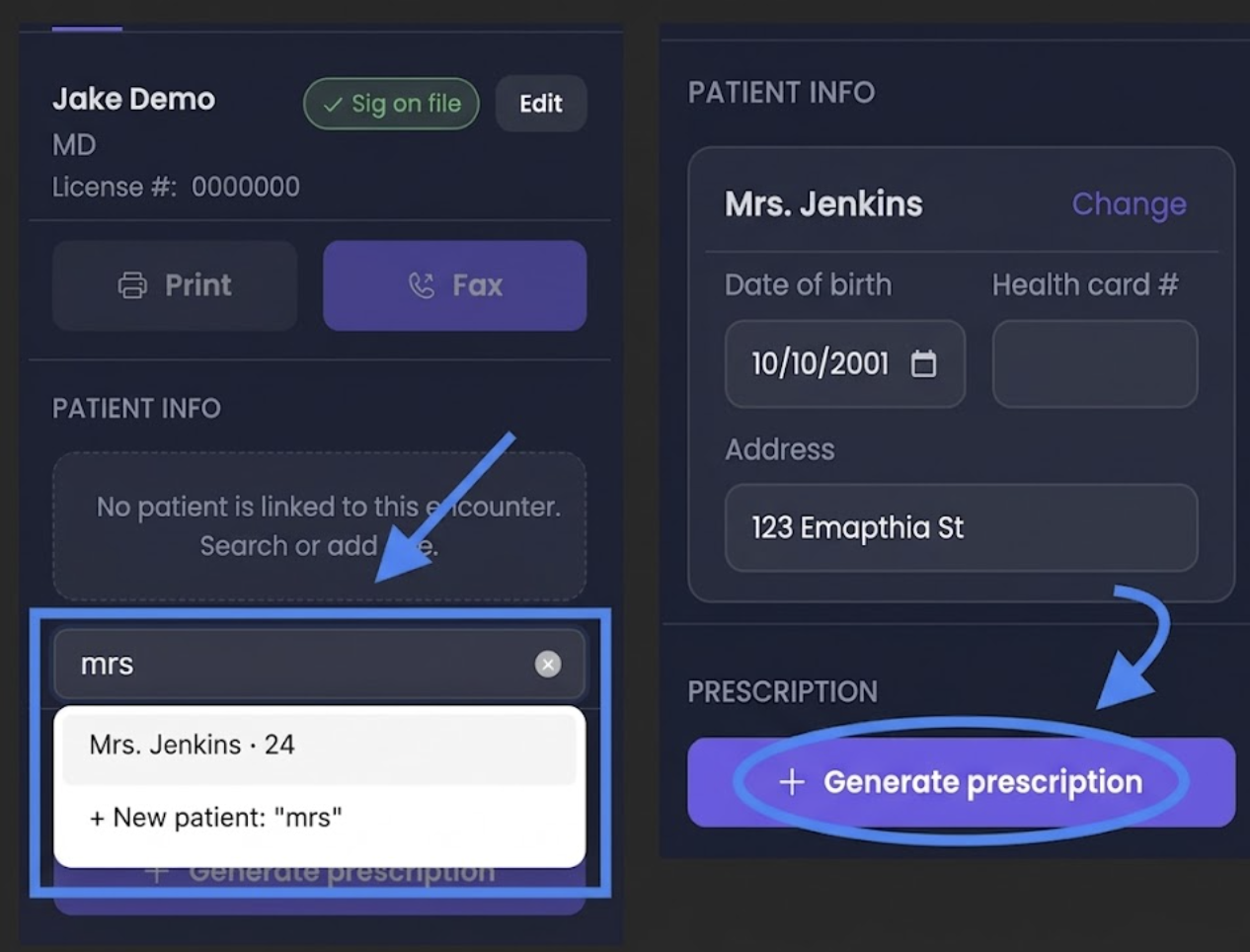
Before generating the prescription, confirm the patient information associated with the encounter. Information includes:
Patient name
Date of birth
Health card number
Address
Saving this information also allows the patient details to remain associated with the patient for future visits.
Once the information is complete, select Generate Prescription at the bottom of the panel.
Generate prescriptions from the encounter
Empathia reviews the encounter context and identifies medications discussed during the visit.
Relevant prescription information may include:
Medication name
Dosage
Directions / Sig
Route
Quantity
Number of refills
For example, if the clinician says during the encounter:
“Let's start amoxicillin 500 mg three times daily for 7 days.”
Empathia can use the conversation to prepare the corresponding medication order.
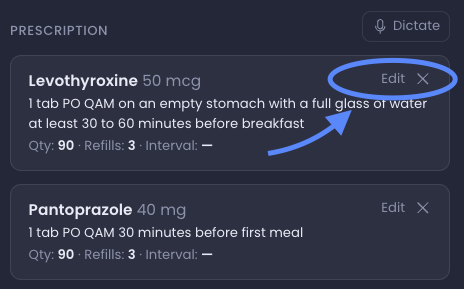
The generated medications will appear as individual prescription entries for you to review before anything is printed or sent.
Review and edit the prescription
Always review the generated prescription before sending it.
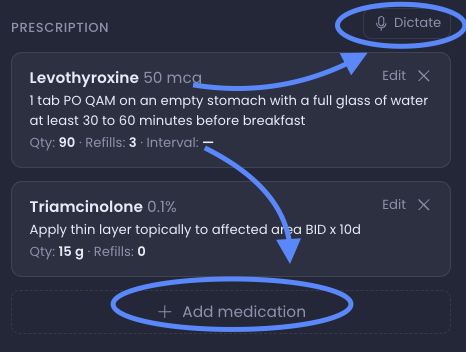
Each medication can be edited individually. Select Edit beside a medication to update information such as:
Medication Name
Dosage
Directions
Quantity
Number of refills
Other prescription details
To remove a medication from the prescription, select the X in the upper-right corner of that medication.
Add another medication
You are not limited to medications automatically identified from the encounter.
To add another prescription, you can:
Use dictation to describe the medication you want to prescribe, or
Select Add Medication and enter the medication manually.
This is useful when a medication was not discussed explicitly during the recorded portion of the encounter or when you decide to add something while reviewing the prescription.
Print or fax the prescription
Once you have reviewed and finalized the prescription, you can choose to either:
Print the prescription
Select Print to generate a print-ready prescription containing the patient, medication, and clinician information.
Fax directly to the pharmacy
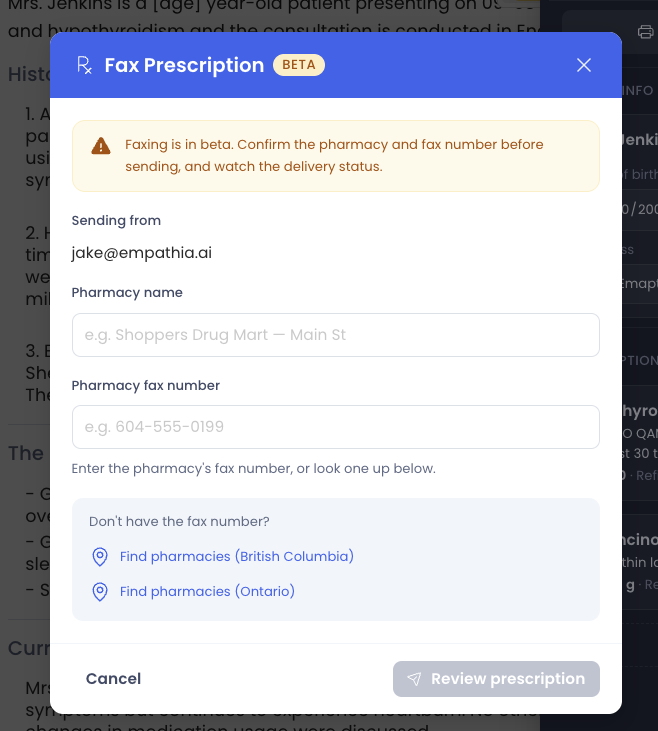
You can also send the prescription directly to the patient's pharmacy through Empathia.
Enter:
Pharmacy name
Pharmacy fax number
For clinicians in British Columbia and Ontario, Empathia also provides a quick pharmacy lookup to help locate pharmacy fax information
Preview before sending
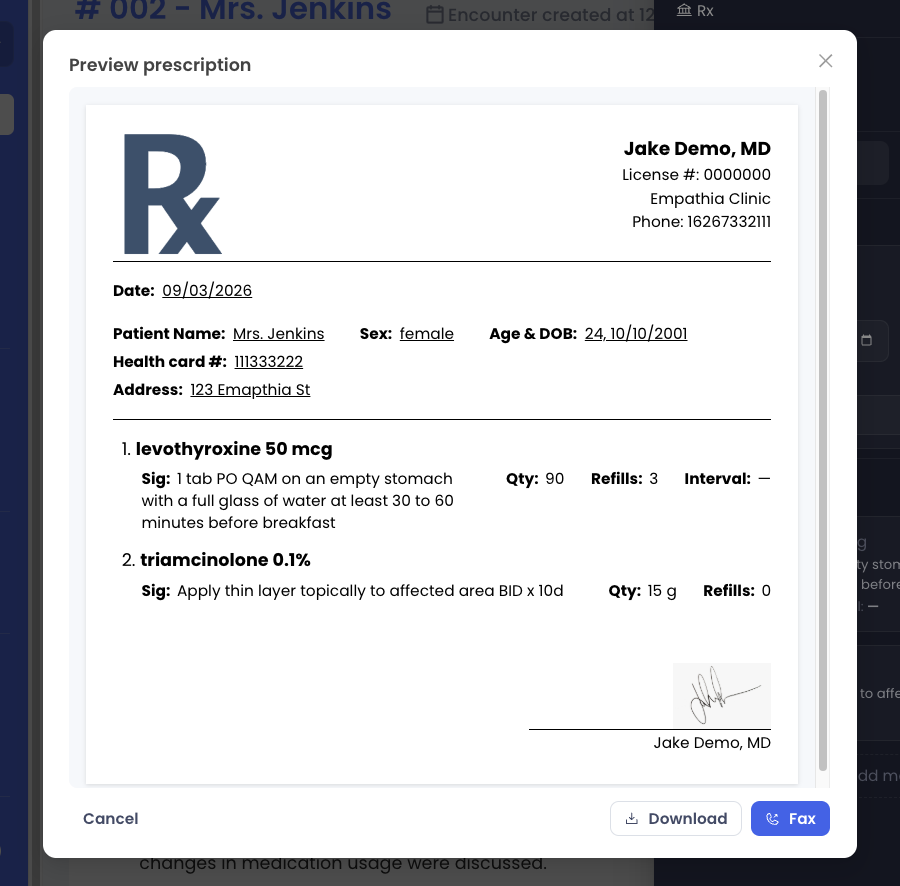
Before faxing the prescription, select Preview Prescription.
Use the preview to verify:
Patient information
Medication and dosage
Directions
Quantity and refills
Prescriber information
License information
Signature
Receiving pharmacy information
Once everything is correct, select Send.
Track your fax status
After sending a prescription, Empathia provides visibility into the fax delivery status.
Pending
The fax is currently being transmitted.
If delivery takes longer than expected, Empathia may display a warning so you can check its status.
Sent
The fax has been successfully transmitted.
Successful transmissions include confirmation information so you can verify that the fax was sent.
Failed
If the fax cannot be delivered, Empathia displays the failed status along with additional information when available. You can then correct the pharmacy information if necessary and resend the fax.
Example workflow
During a patient visit, you discuss starting a new medication and changing the dosage of an existing medication.
After completing the encounter:
Open Rx from the encounter toolbar.
Confirm the patient's information.
Select Generate Prescription.
Review the medications identified from the encounter.
Edit the medication dosage or refill information if needed.
Add any additional medication.
Select the patient's pharmacy.
Preview the prescription.
Print it or fax it directly to the pharmacy.
This allows the prescribing workflow to remain connected to the same encounter instead of requiring you to recreate the prescription in another window.
Tips for using Prescription + eFax
Be clear when discussing medication instructions
When possible, clearly state medication details during the encounter, including strength, dosage, frequency, duration, and refills.
For example:
“Start amoxicillin 500 mg by mouth three times daily for 7 days with no refills.”
Clear medication instructions make it easier for Empathia to organize the prescription accurately.
Always review before sending
Empathia helps prepare the prescription, but the prescribing clinician remains responsible for reviewing and confirming the medication information before it is printed or transmitted.
Confirm the pharmacy fax number
Verify that the selected pharmacy and fax number are correct before sending the prescription.
More eFax workflows are coming
The Empathia team is actively expanding eFax beyond prescriptions.
Faxing for consultation letters and referral letters is coming soon, allowing more clinical documents to be prepared and sent directly from the Empathia workflow.
Reach out to Support@empathia.ai if you need any support or have any concerns.
Was this article helpful?
That’s Great!
Thank you for your feedback
Sorry! We couldn't be helpful
Thank you for your feedback
Feedback sent
We appreciate your effort and will try to fix the article