We’re excited to announce that Empathia AI now integrates seamlessly with Accuro EMR! This integration empowers you to streamline your clinical workflow by syncing your schedule, automatically pulling relevant patient history bands, accessing patient context, and pushing completed notes directly into Accuro—all from within Empathia.
Key Features Available Now
Push SOAP notes, referrals, and consults directly from Empathia to patient charts in Accuro.
Pull your appointment schedule from Accuro into Empathia to quickly load patient details and create draft encounters.
Access patient context such as medical history, medications, and other important information directly from Accuro to enrich your documentation in Empathia.
If you haven't yet applied for the Accuro Integration, take a look at our article on "How to Set up your QHR Accuro & Empathia AI Integration".
How It Works:
Activate the Accuro Integration:
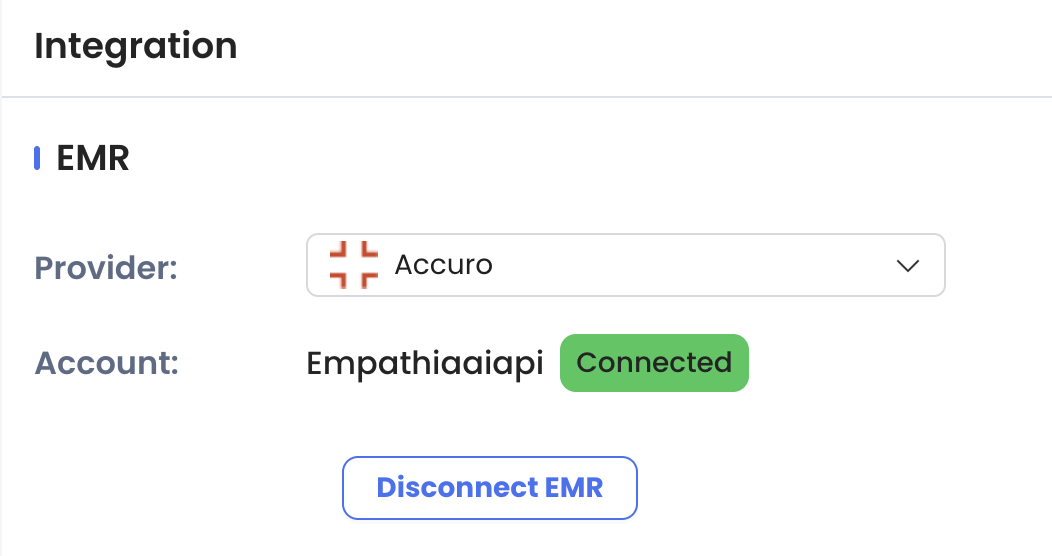
Once the QHR Implementations team confirms the integration process & provides your login credentials, you can activate your integration on Empathia's web portal.
1. Sign in to your Accuro profile (either on web or on your desktop)
2. On your Empathia web portal, click on the down arrow next to your profile icon on the top right corner, then select "Integration" (contact support@empathia.ai if you do not see this button). 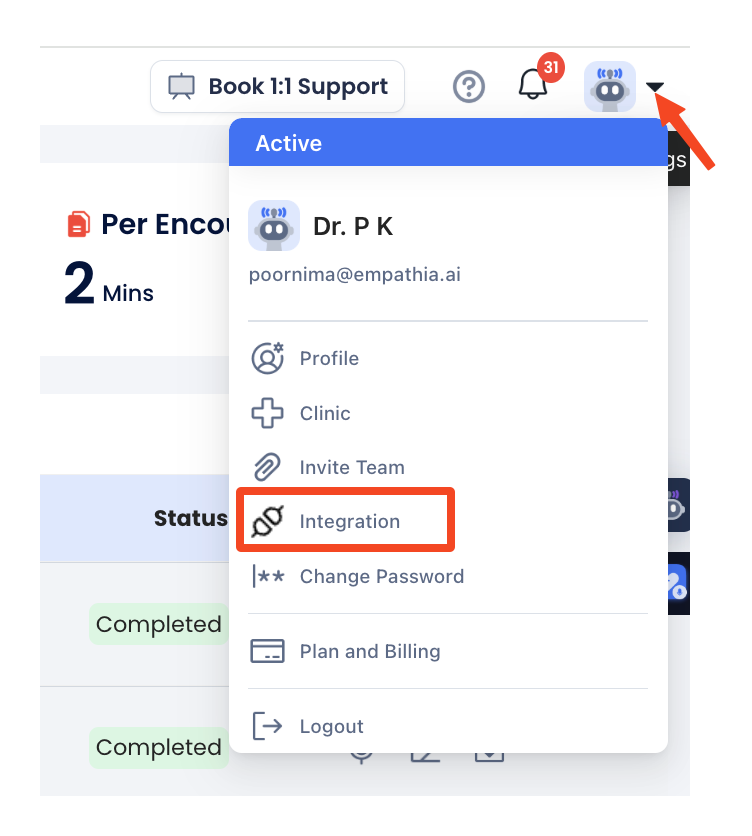
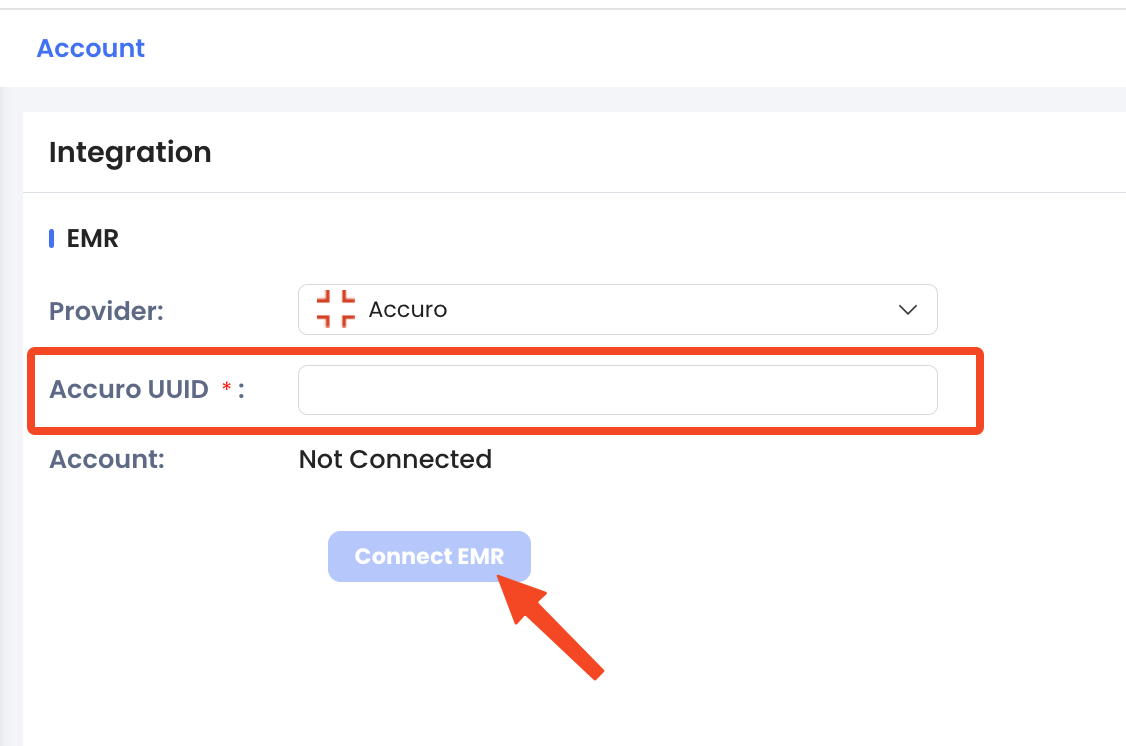
2. Select "Accuro" EMR from the drop down menu, enter your Accuro UUID & click "Connect EMR" (You will receive the UUID in the initial set up email from Accuro. It will have a format like this - fc97183e-dd2f-433d-9fd5-36bad7615c3b)
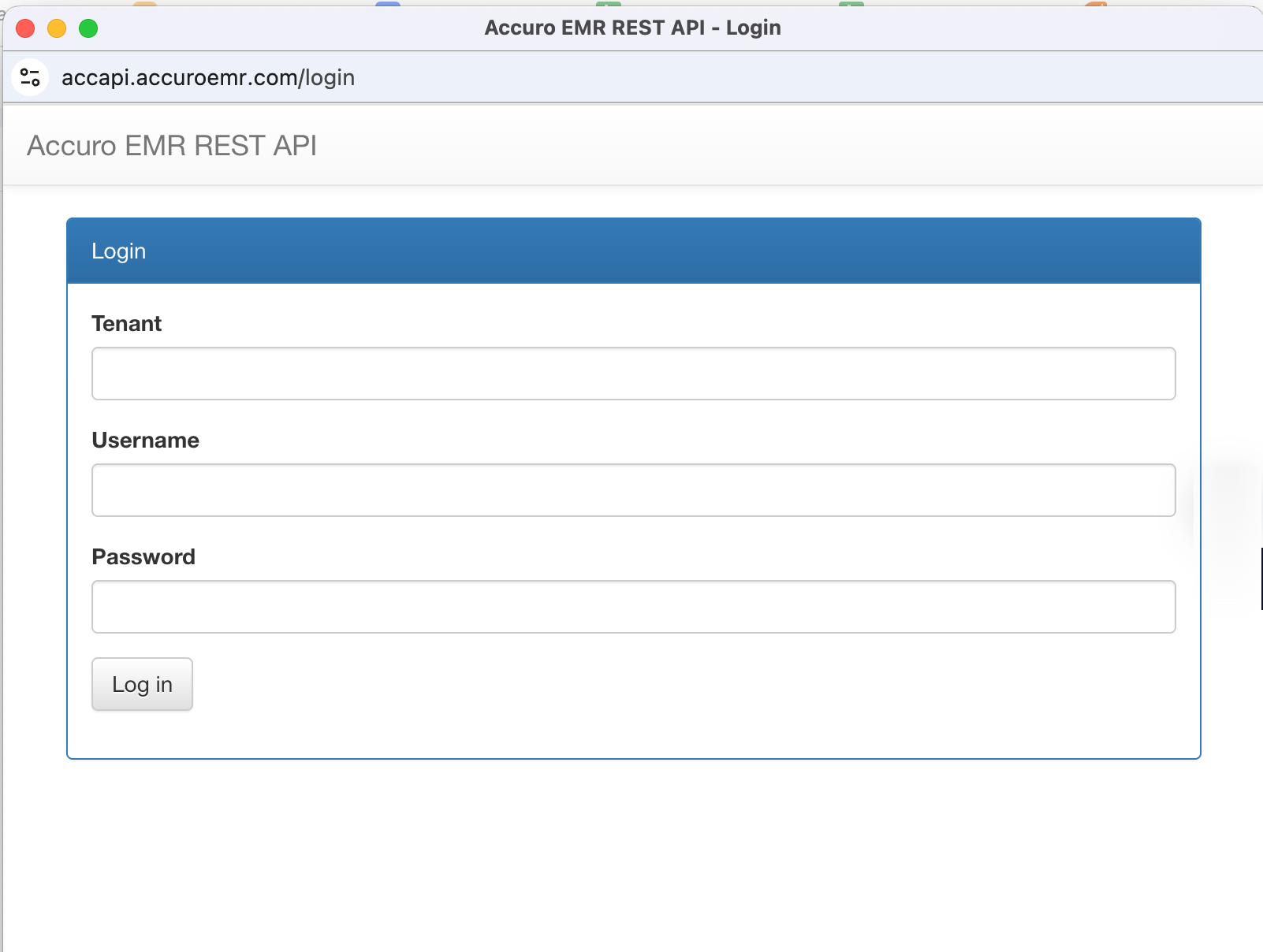
3. Enter your Accuro Tenant Details to login. (Please follow the instructions in the initial email from Accuro to contact client services at 1.866.729.8889 EXT 0 and provide your specific MOD number)
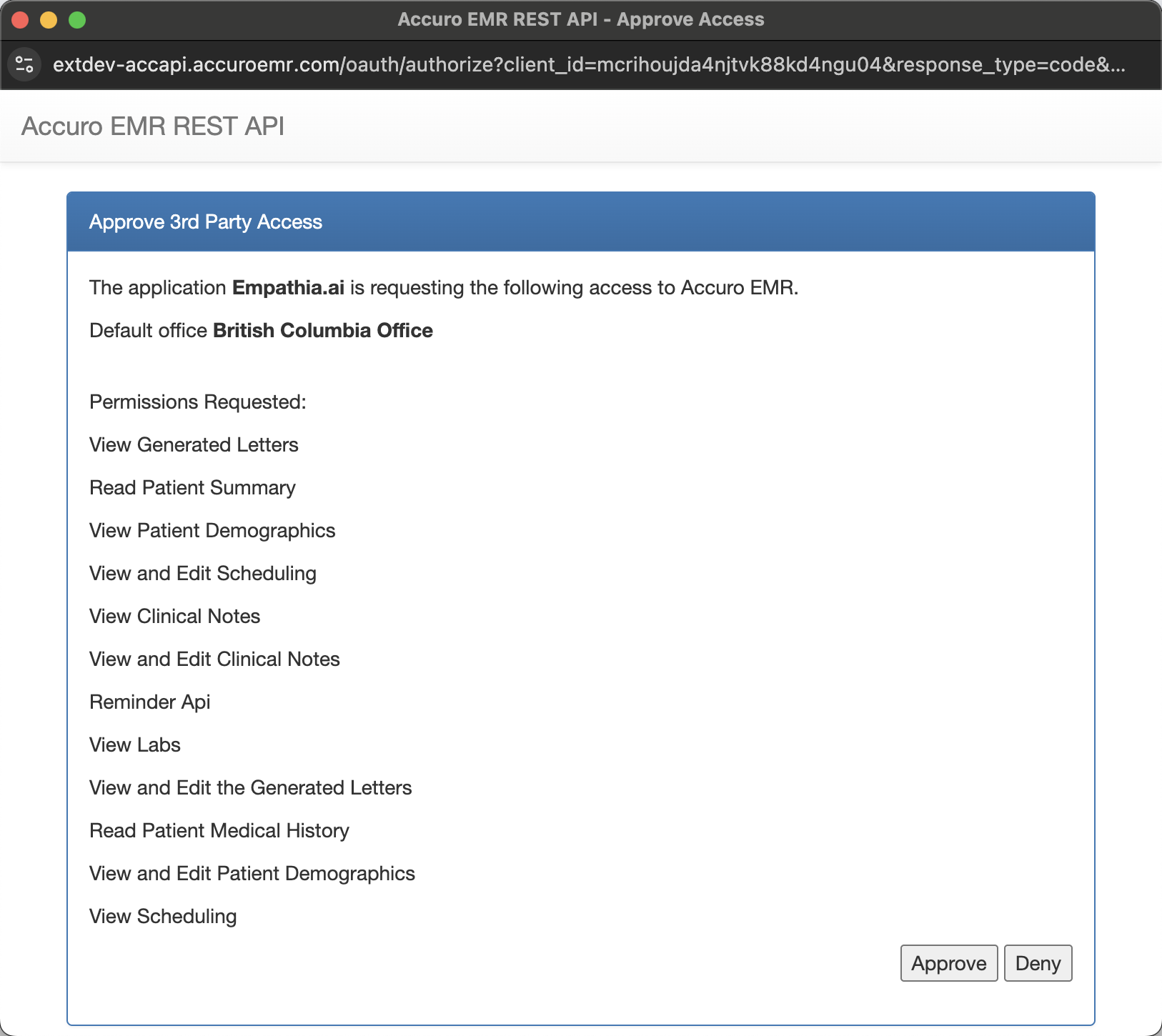
4. Approve the SSO Permission Request.
5. Once approved, a confirmation will appear in the integration window.
Using the Accuro Integration
1. Sync your Daily Patient Schedule - Once Accuro EMR is connected, you will see a "Sync" button on your home page. This allows you to pull the list of patients from your Accuro Scheduler. You can sync your schedule up to 14 days in advance, making it easier to pre-chart ahead of busy clinic days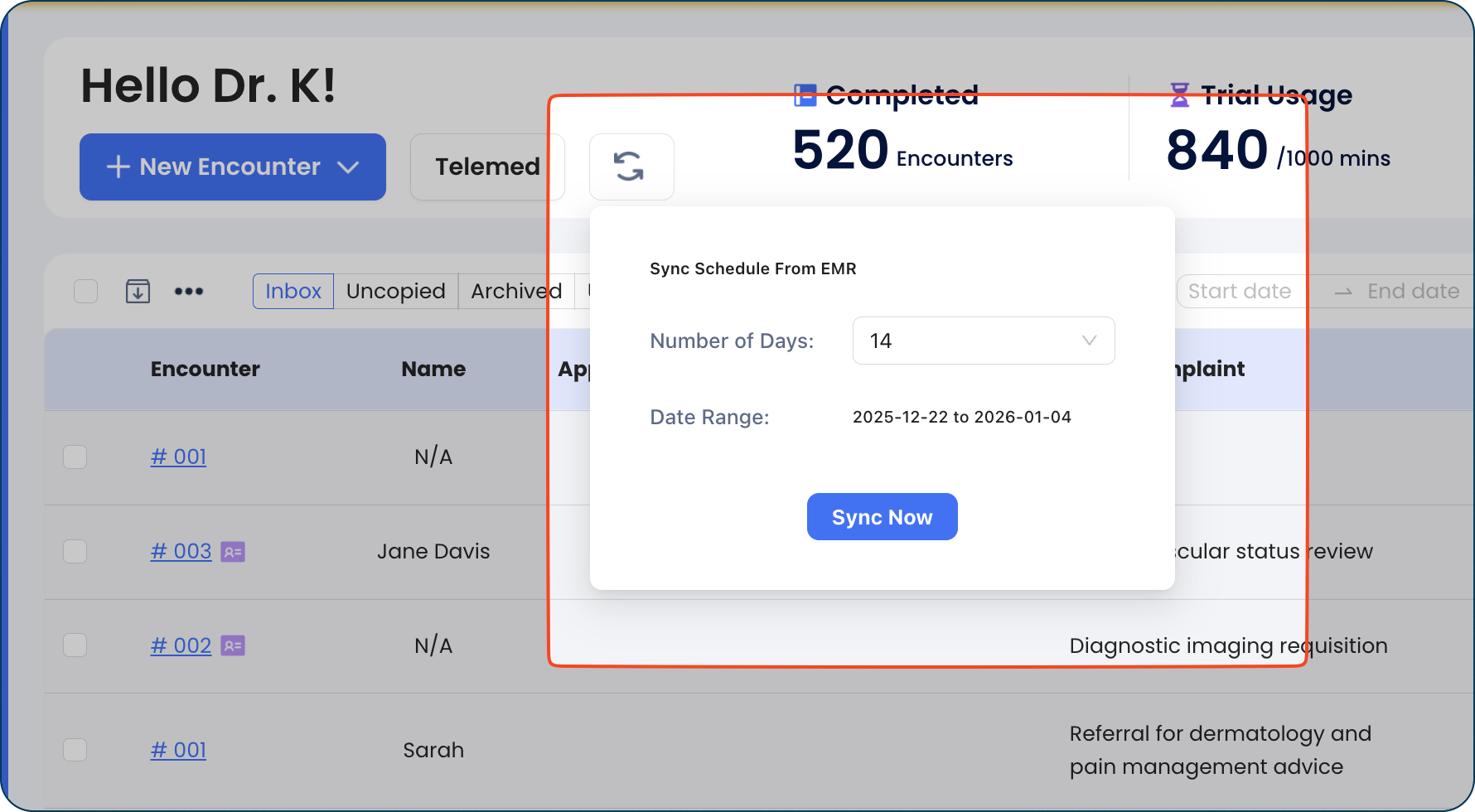
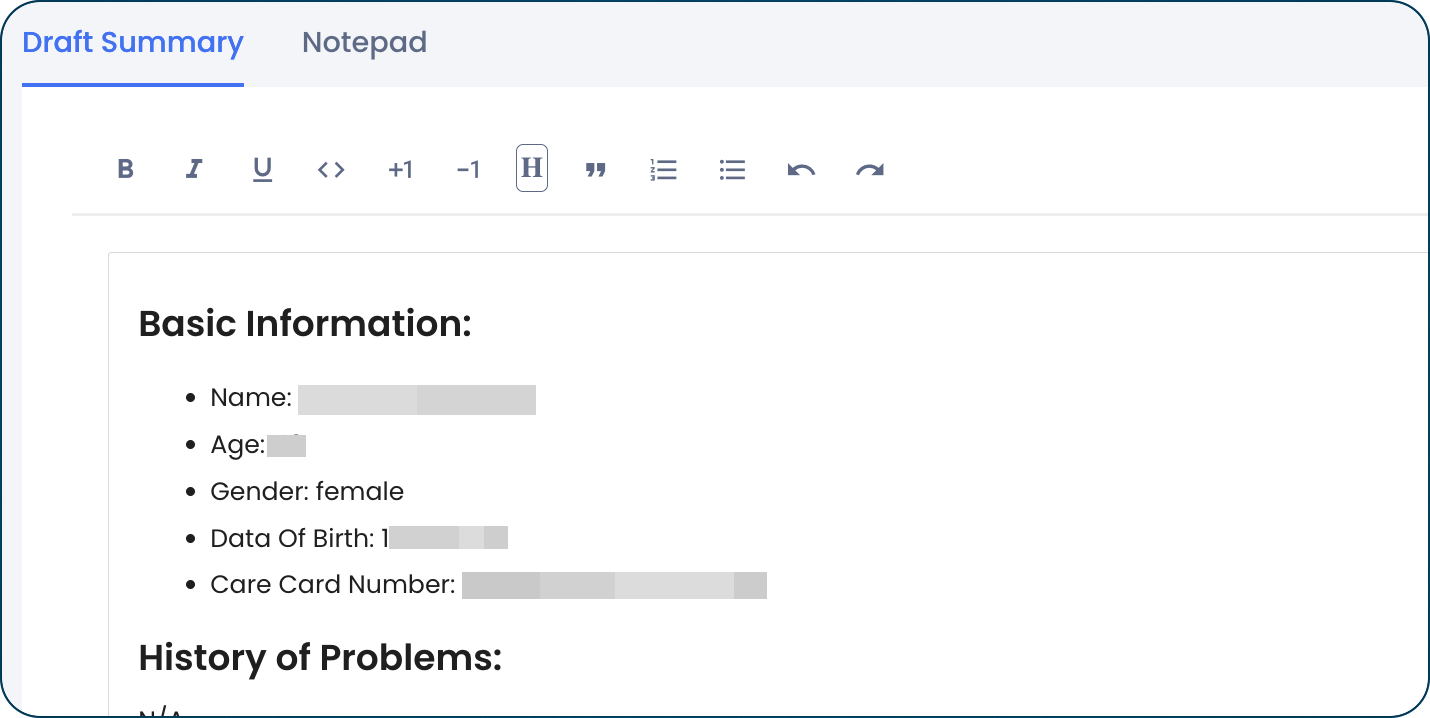
2. Review Draft Summaries - A Draft summary for the patients scheduled for that day will appear in your encounter list, along with the scheduled appointment time. The summary will include the name, age, gender, date of birth, and health card number, and relevant medical history for that patient.

3. Pulling Documents from the Virtual Chart - [UPDATE] - Empathia will pull the most recent Referral Letters & Lab results from the patient's virtual chart. These will appear directly in your Draft Summary, under the "Uploaded Patient History" tab.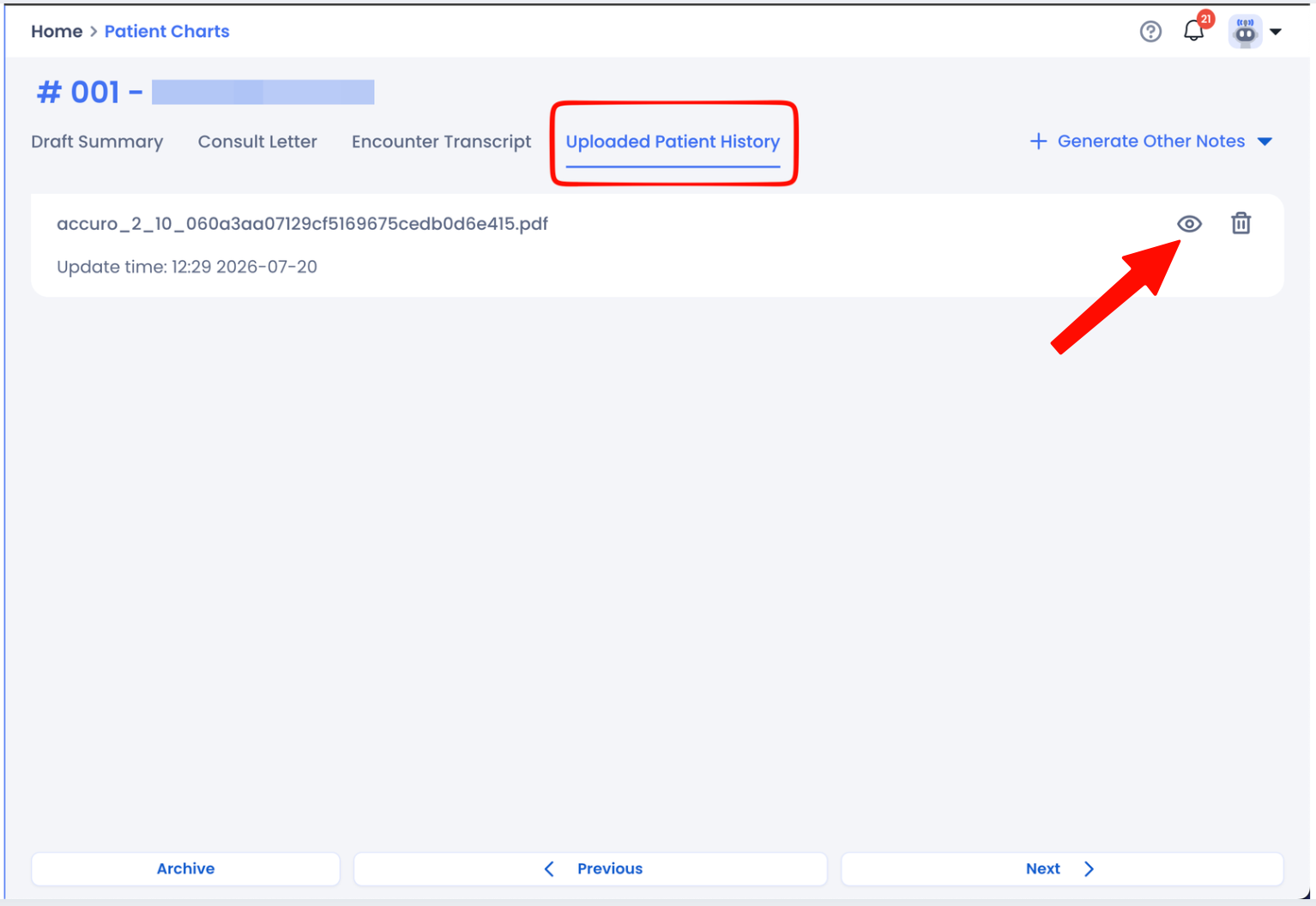
4. Start Recording - Click on the mic button to easily start your recording with the patient.

You can also directly Start Recording from the Draft Summary page.
UPDATE: You can use our telemed on web feature, by simply clicking on the phone icon next to your synced draft.
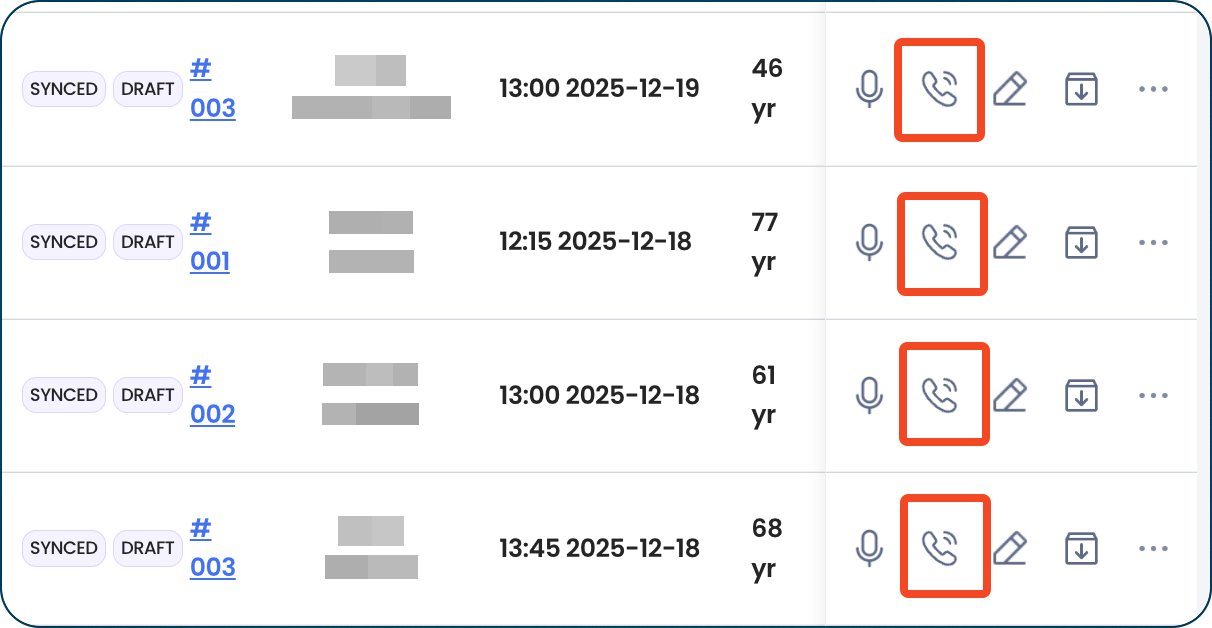
5. Push note to EMR - Once you review the SOAP note or the Consult letter, click on the QHR icon to "Send to EMR" and push the note directly to the patient chart in Accuro. 
You can also send your notes to Accuro as a batch. Select the encounters you would like to Send to EMR & then click on the 3 dots to "Send to EMR"
You will see a follow up screen, asking you to review the notes for each patient, in case you have generated additional notes like patient handout, referral letters, etc.
Troubleshooting & FAQs -
1. Why do some notes show the "Send to EMR" button as disabled?
A. Only those notes that are created from Drafts by syncing from Accuro, will allow the Send to EMR action. These notes are linked to the patient charts in Accuro via the API integration. If encounters are recorded directly on Empathia without syncing first, these notes are not linked to the patient charts & therefore cannot be "Sent to EMR".
2.In certain situations, additional configuration & permissions may be required on the provider's Accuro account. Take a look at the detailed Instructions for Provider Permission Configuration in Accuro.
3. Can I use my existing templates from Accuro in Empathia?
A. Yes, you can use existing tools in Empathia AI to import your templates, macros from Accuro. Take a look at our relevant articles on Templates & Macros. Advanced features like capturing Engage Video visits, sending pre-visit Intake summaries directly to Accuro & pushing notes from the app are coming SOON - stay tuned!
4: Why are my rescheduled encounters failing to sync?
A: This typically occurs when an appointment is moved using the Cut and Paste method. To ensure your rescheduled appointments sync correctly, please use one of the following methods:
Copy and Paste: Copy the original appointment and paste it into the new date/time slot in your Accuro schedule, then sync.
Recreate: Delete the existing appointment and create a new one at the intended date in Accuro, then sync.
Was this article helpful?
That’s Great!
Thank you for your feedback
Sorry! We couldn't be helpful
Thank you for your feedback
Feedback sent
We appreciate your effort and will try to fix the article