Clinical templates are an important documentation tool that provide improved efficiency, consistency in documentation quality, personalization, and often completeness for legal and compliance purposes.
Our Template feature designed to streamline and simplify the creation and customization of templates in Empathia. With Templates, users can convert sample notes into structured, usable templates more easily, saving time and enhancing flexibility in documentation.
Why Templates Matter
Every clinician has a "signature style." Whether you prefer a traditional SOAP format or a highly specialized surgical summary, templates do the heavy lifting for you.
Clinical Consistency: Ensure every note follows the same logical flow, making it easier for you (and your colleagues) to review charts later.
Reduced Cognitive Load: Reduce note review & editing time
Precision Control: You decide which sections are mandatory and what specific information (like ICD-10 codes or specific physical exam maneuvers) needs to be captured.
Key Highlights:
- Simplified Note Conversion: Use a sample note or existing template to generate a template automatically
- AI Assistance for Quick Edits: SMART edit feature while editing the template, no need to worry about how to format the template, just give EMMA your requirements
- Enhanced Customization: Easily add, rename, remove or reorder sections
- Test With Encounter: Test your new template with an encounter right away
- Collaborate with Colleagues: Share your finalized templates to colleagues and friends
How to Build Your Perfect Template?
We’ve made it easy to get started, whether you’re a "start from scratch" person or a "borrow and refine" person. You have four key options:
Start from Scratch: Use our template editor to build a custom structure from the ground up.
Paste an Existing Note: Have a note you already love? Paste it into the empty canvas. Our AI will analyze the structure, strip out the specific patient data, and turn it into a reusable skeleton.
Upload a File: Upload a previous PDF or Word document note. The AI will automatically extract the formatting and headings.
The Community Library: Browse our Community Templates Folder to find templates created by peers in your specialty. Find one that’s "close enough" and tweak it to perfection.
Privacy First: When you paste or upload a note to create a template, our system automatically de-identifies all patient information. We keep the "containers" (the headers and structure) and discard the "content" (the PHI), ensuring your templates are both powerful and HIPAA-compliant.
Key Steps
1. From the left hand panel, under Personalization, go to Templates. Click on "Create New Template" to start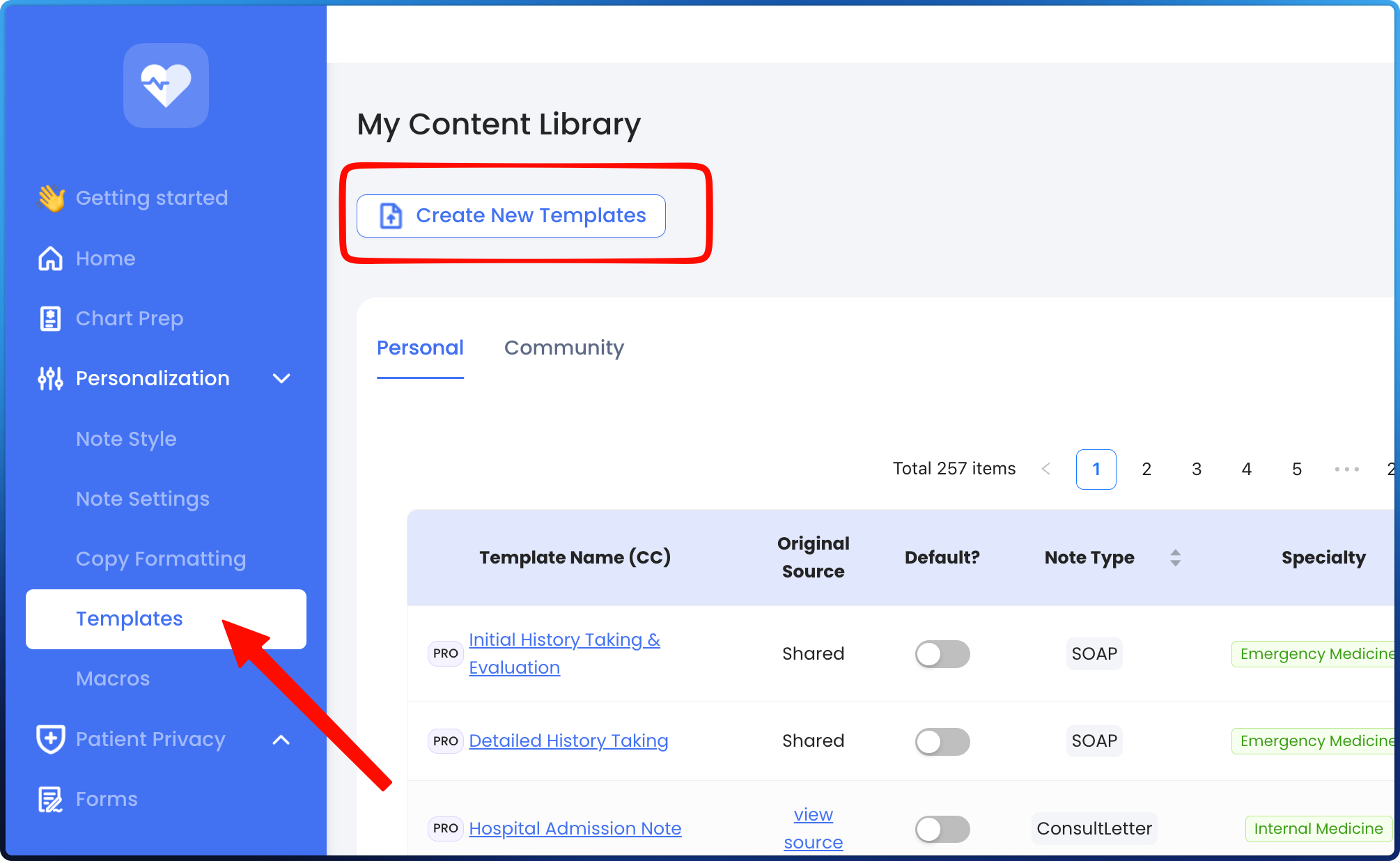
2. Choose your preferred input method:
- Text: Copy and paste your existing EMR template or a sample note. You can also type in instructions for the AI to create a template
- File Upload: Upload a PDF, .txt, or .docx file of your template or a sample note
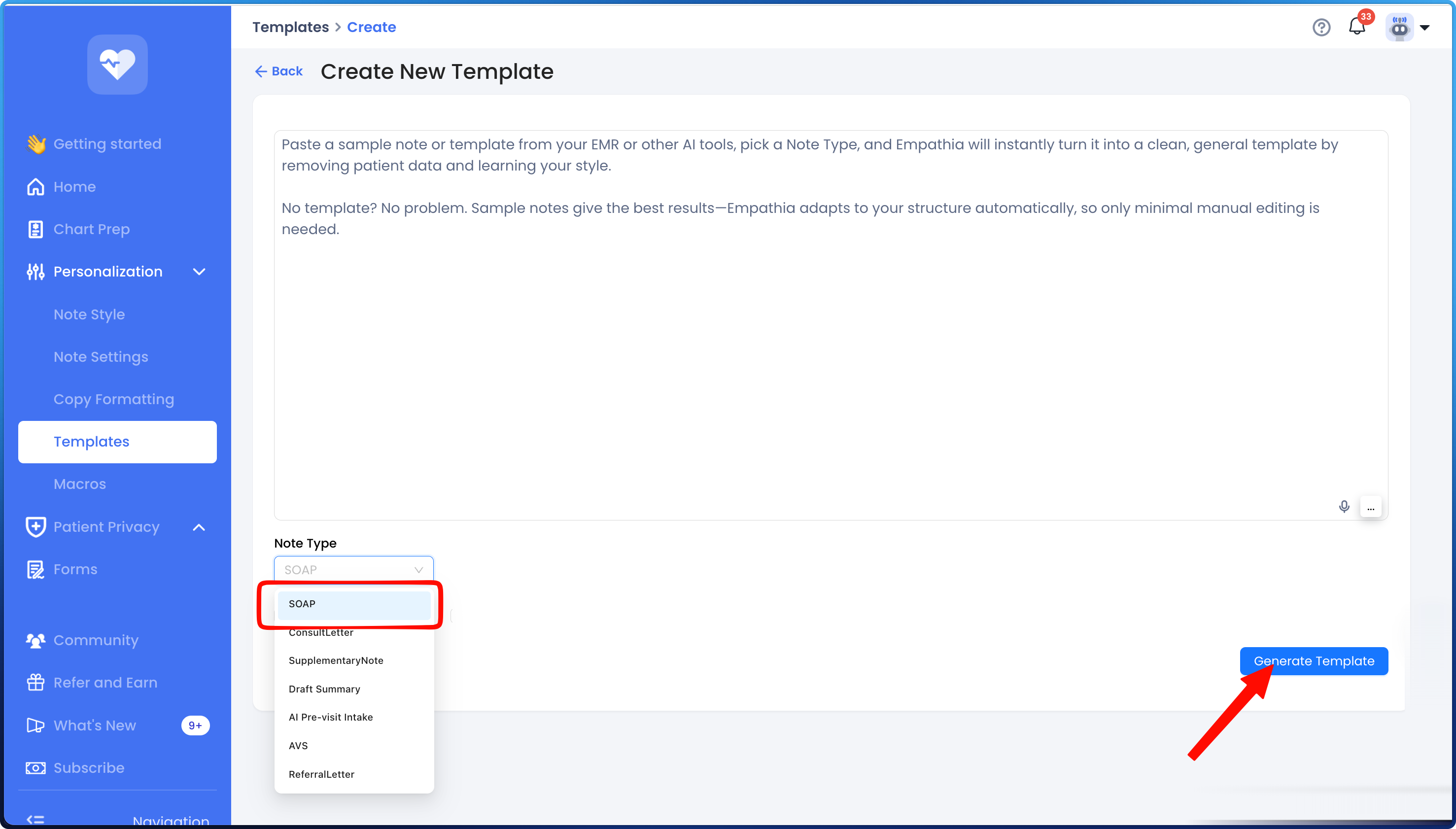
3. Choose Note Type and click on Generate Template. The types of notes include -
- SOAP Note: Progress Note, Physical Exam, Follow-Up Note
- Consult Letter
- After visit summary (Patient Handout)
- Supplementary Note (for sick note, medication appealing letter, insurance letter, etc.)
- Referral Letter
- Intake Summary
(Note: the template will only apply to the same type of note)
4: Template Generation
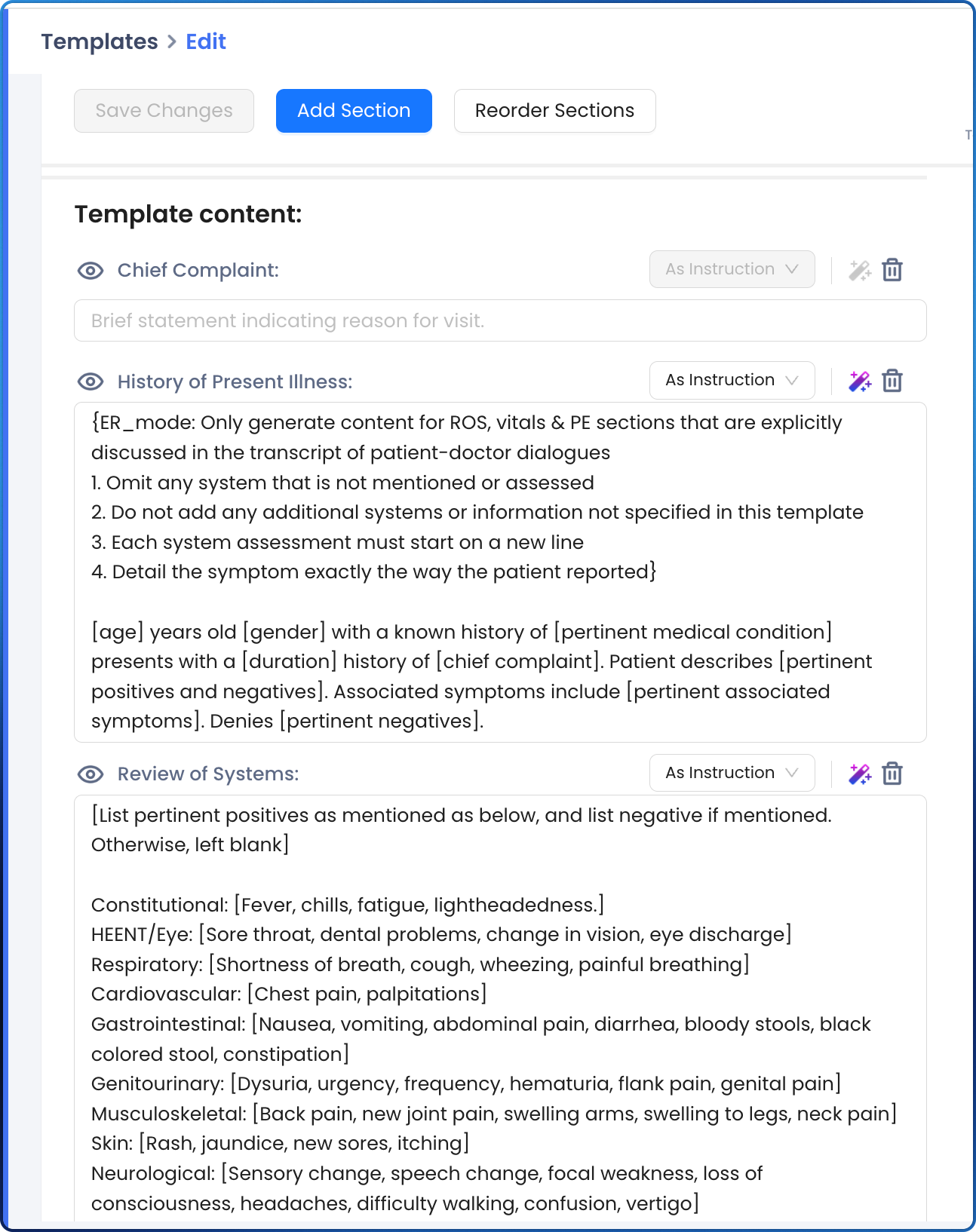
The system will automatically convert your content into the template format, with [ ] around directions and instructions, allowing the system to accurately interpret and generate notes based on the prompt.
5: Review and Edit Sections
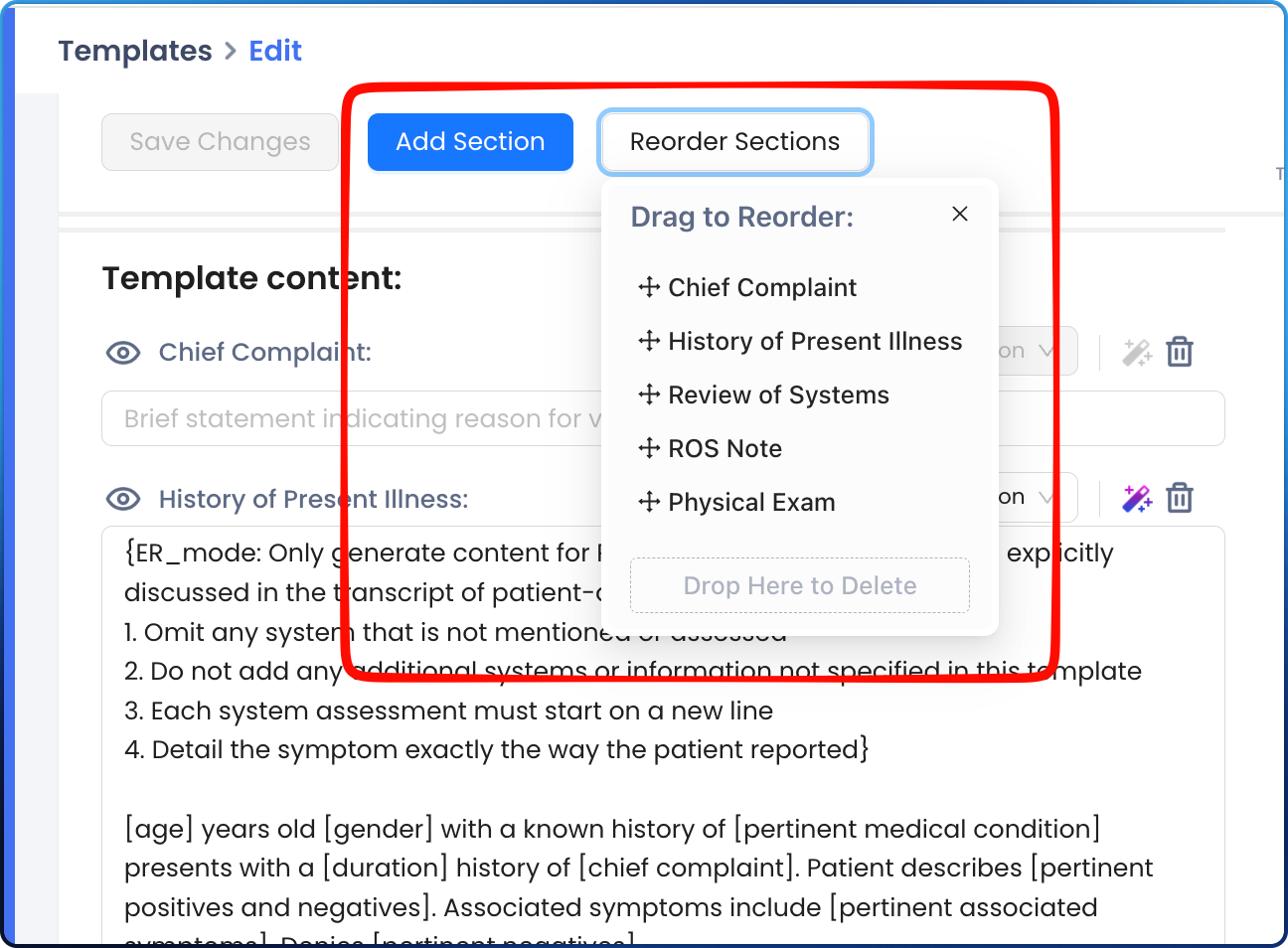
- Create or Delete Sections: You can add new sections or delete sections you don't want in the template editor.
- Reorder Sections: To reorder your sections you can click "reorder sections at the top of the template editor page. You can then drag and drop your sections to where you would like them to customize your layout.
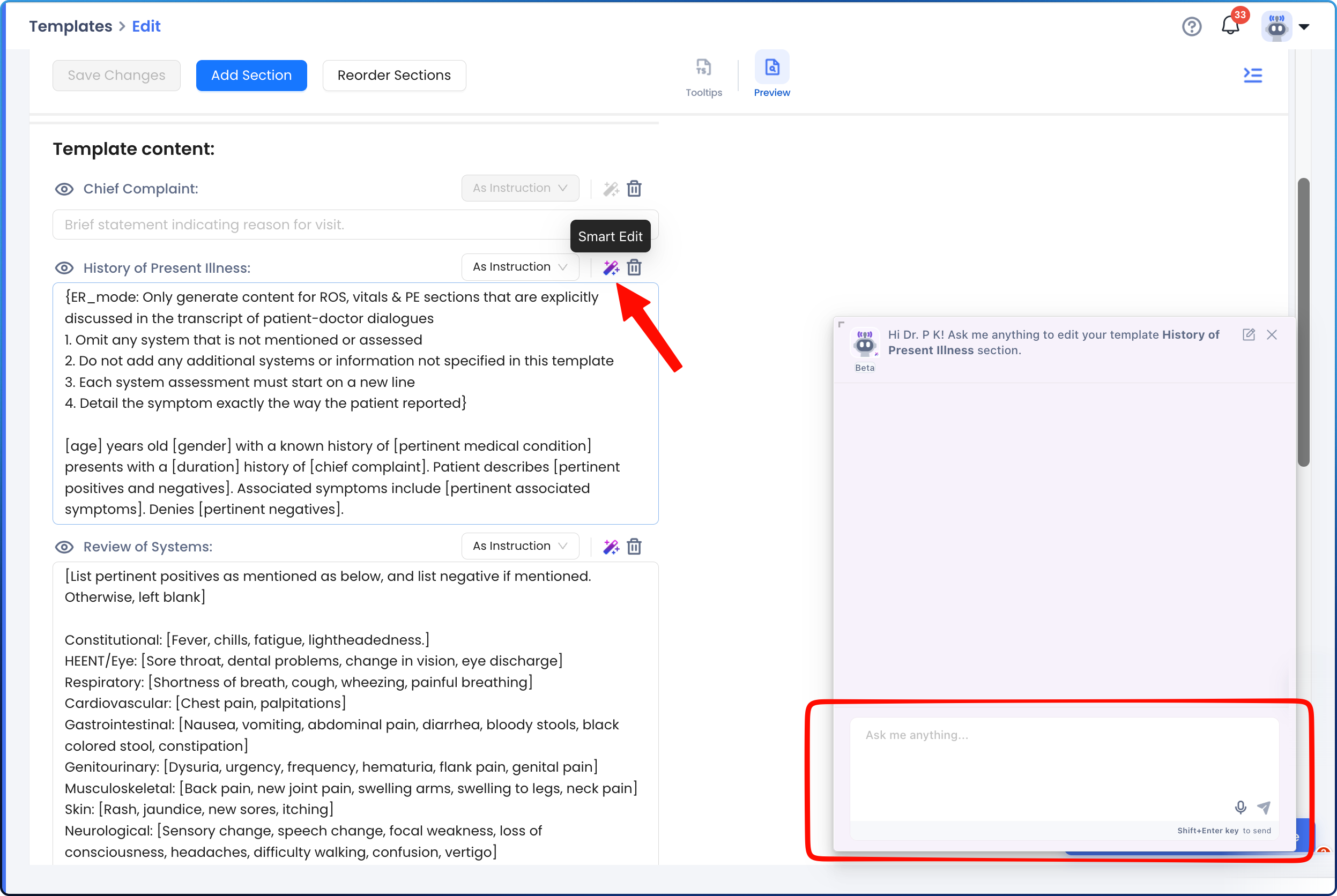
6. Edit with AI Assistance: Click on the purple magic wand icon next to each section heading to open an editing window similar to the Smart Edit feature. Here, you can chat with Emma AI to refine your template further.
- Example: Start by stating the patients name, age and gender, then document HPI using OPQRST structure.
- If you're satisfied with the AI's suggestions, click "Insert"to update your template section with the new version.
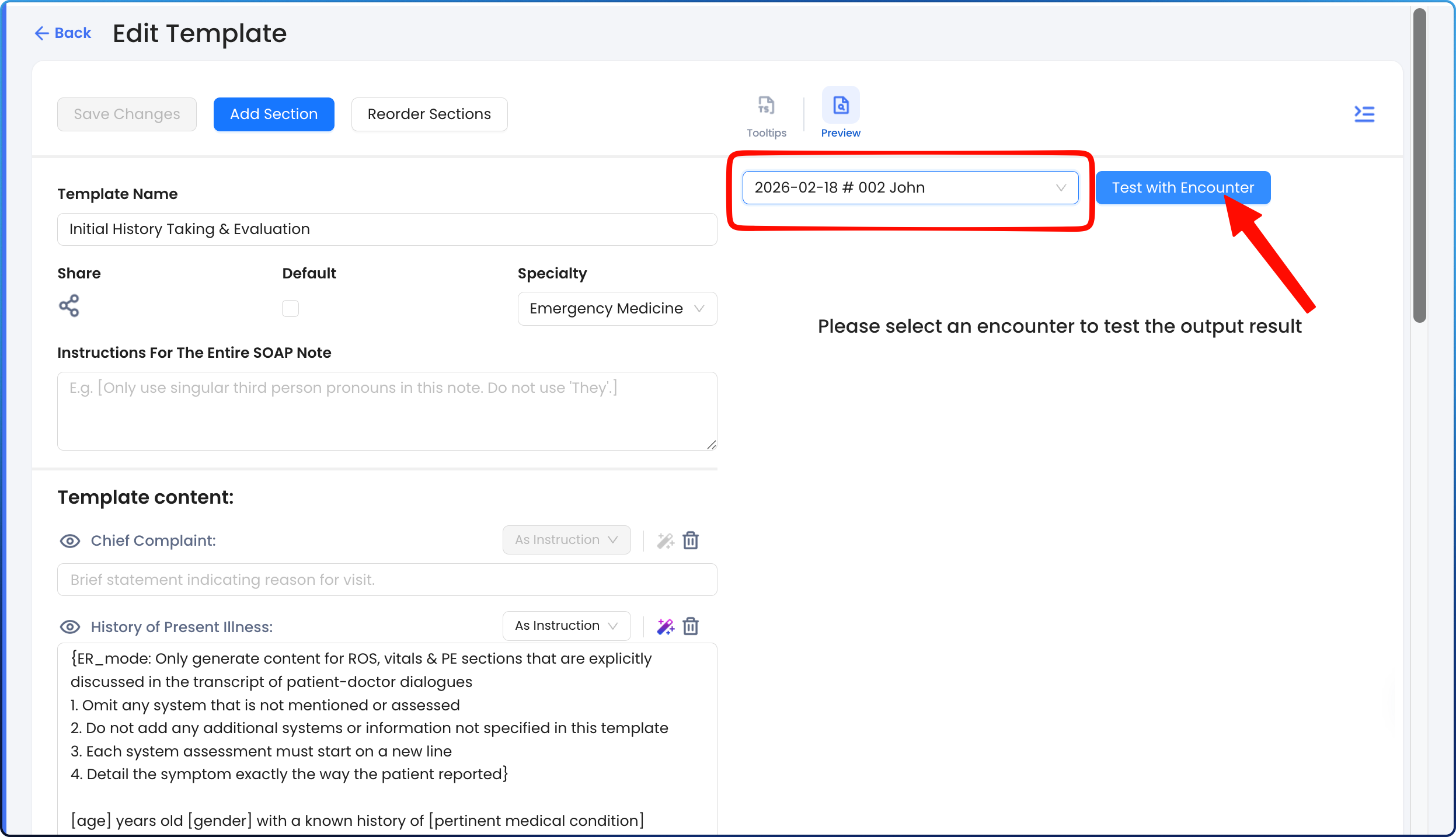
7. Test with Encounter - One of Template Pro’s standout features is the ability to test templates directly with real encounter notes:
- Select an encounter from your account by searching in the box on the right.
- Click on "Test with Encounter" to see how the template functions without needing to switch back and forth between tabs/windows.
- Make any edits or adjustments as needed.
8. [Optional] Set it as default template
If you want to use a template as the default for all your notes going forward, you can check the "Default" checkbox or use the toggle in the template list. 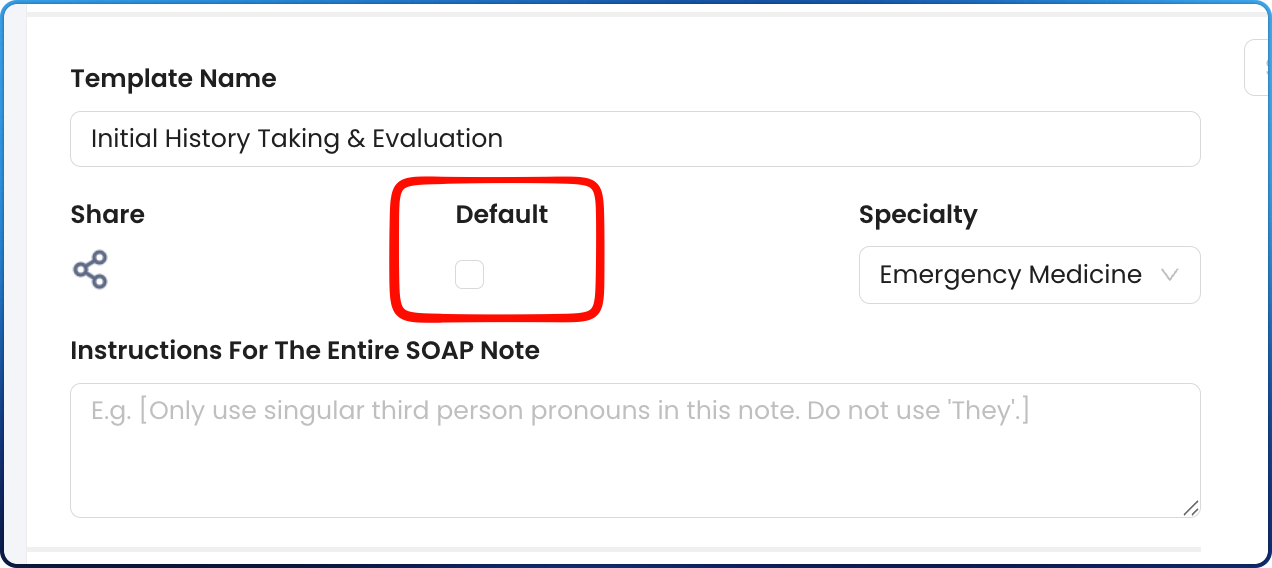
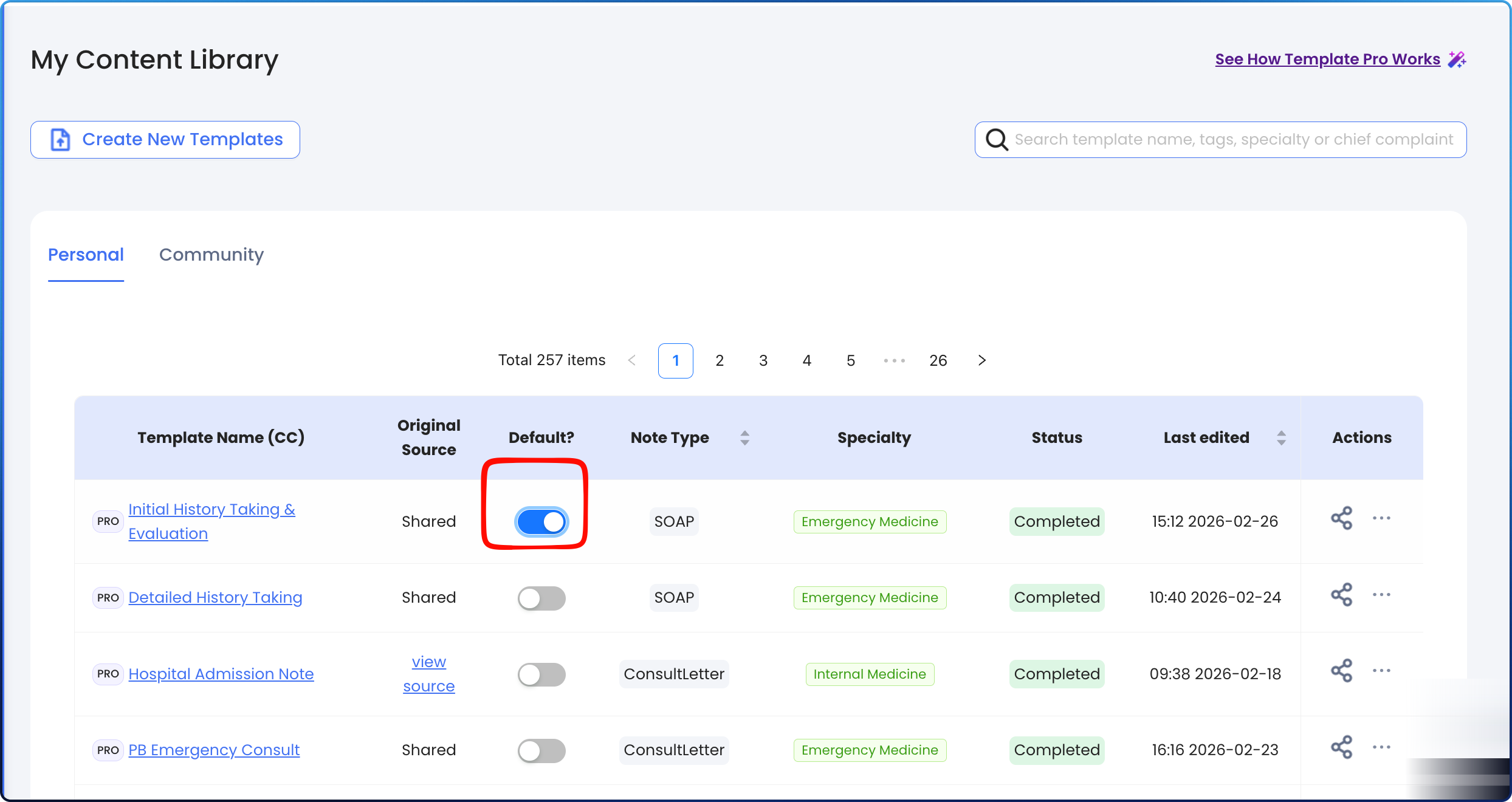
Tip: You can select one default template for each note type (i.e. SOAP note, consult letter, AVS, etc.)
General formatting instructions:
1. Text in Placeholders “[ ]”:
The text within the placeholders are instructions for the AI to fill in based on the relevant information from the encounter. Alternative text options are separated by “/”.
Example: “They describe their symptoms as [mild/moderate/severe], localized to the [location if relevant] and radiating to [radiation if relevant], which began [onset].”
If relevant information is not found in the encounter transcript, the clause containing the unfilled placeholder is removed from the output note.
If you don't have specific requirements for the phrasing used in your note, you can also use placeholders as a general instruction for what you want to include in a specific section.
Example: [Document HPI, including treatment history, current management plan, and any complications or side effects]
2. Format/Style Instructions in “()”:
Instructions on output format/style are placed in ( ). These instructions are not included in the output note.
Example: “Allergy: [a list of allergens] (multiple allergens are listed on one line with commas “,” as the delimiter between allergens)”
This allows users to give EMMA instructions, providing more control over format/style than the general Format/Style Setting on the web portal.
3. Other Text:
If not surrounded by either or ( ), this text is included in the final output note unless the information contradicts the encounter transcript.
This is best suited for disclaimers, boilerplate text, or patient instructions which should always be present in the final output.
Share Templates with Your Colleagues!
With our sharing feature, you can now easily collaborate with colleagues by sharing your templates directly within Empathia AI. This streamlines teamwork and ensures consistency in your clinic with just a few clicks.
Simly click the "Share" icon and add your colleagues email ID. They will also be notified via email and the template will be added to their personal template folder on Empathia AI.

Troubleshooting Guide:
1. File Conversion Issues:
- If your uploaded file doesn’t convert properly, ensure it is in PDF, .txt, or .docx format. If issues persist, contact support@empathia.ai for further assistance.
2. Missing [ ] Formatting:
- Double-check all instructions and variable fields (like names and dates, symptoms) have [ ] around them to ensure the system can read these details correctly when generating.
3. Note Formatting:
- If you would like specific section of your notes to be generated in Bullet point, you may write "(Bullet point format)" or put "-" in front of each line.
- Ex. Medication list:
- - [Medication 1]
- - [Medication 2]
- Ex. Medication list:
Was this article helpful?
That’s Great!
Thank you for your feedback
Sorry! We couldn't be helpful
Thank you for your feedback
Feedback sent
We appreciate your effort and will try to fix the article