Empathia provides a streamlined workflow for Medical Office Assistants (MOAs), Physician Assistants(PAs) and nurses to create intake summaries or SOAP notes, share them with doctors, and facilitate a smooth collaborative process. Here’s how to effectively use the MOA/nurse-specific features.
Benefits:
Streamlines clinic operations: MOAs can handle intake (sending out AI patient intake or record in-person intake), chart prep, autofill forms, and phone follow-up calls with our built-in telemed feature.
Keeps clinicians focused on care: Admin work is handled by support staff while physicians generate and sign notes.
Improves clinic consistency: MOAs can use shared templates across the team to ensure consistent documentation and workflows.
Cost-effective: Low monthly add-on that enables clinics to operate efficiently and collaboratively.
Pricing
- Our MOA/Physician Assistant plan provides essential workflow tools for only $20/month, and must be linked to an active physician account.
- MOA/PA assistant accounts also enjoy the free trial experience. When you decide to subscribe, please contact support@empathia.ai and we will enable the special pricing for your accounts.
- Note: MOA/PA accounts are not eligible for additional discounts or promotional offers.
How to Set Up MOA Accounts
Invite Team
You can easily invite your assistant by sending an invite to their email. They can sign up for their accounts, help you set up templates, share templates, prepare charts, and draft encounters with you.
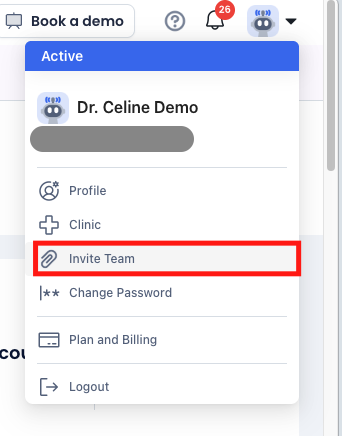
Go to My Account
1) Select "Invite Team"
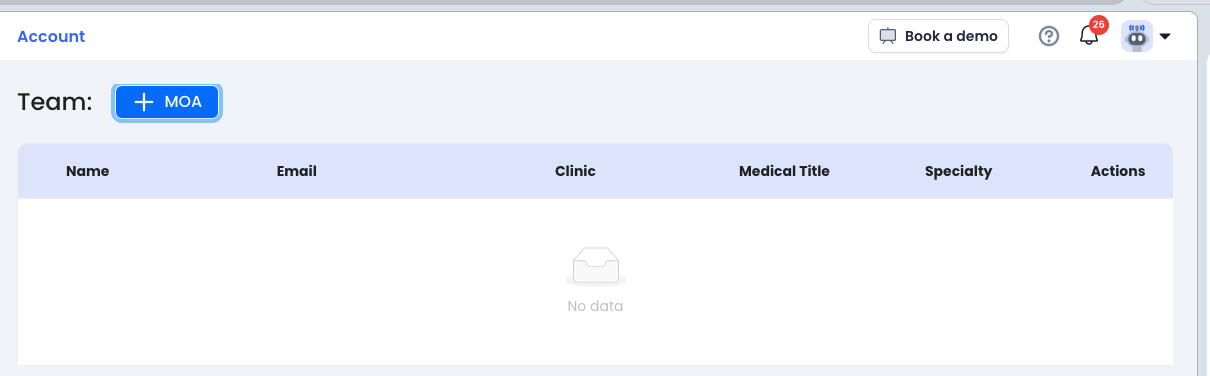
2)Click "+MOA" , input their email.
How to Use MOA Accounts
1. Creating Intake Summaries or SOAP Notes
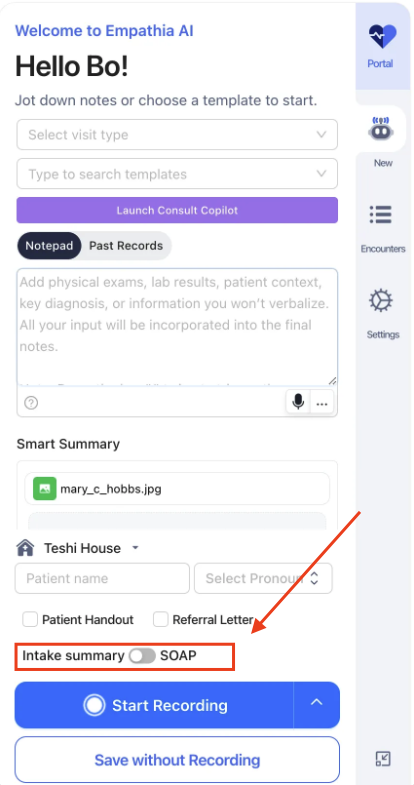
In the Empathia Extension, MOAs and nurses can input patient data through various methods and generate notes based on their specific needs.
Key Features:
Input Options:
- Enter text into the Notepad.
- Upload images or other supporting documents.
- Make audio recordings for detailed input.
Select Default Note Type:
- Use the switch button to toggle between generating an Intake Summary (default) or a SOAP Note.
Generate Notes:
- After recording or clicking Save Without Recording, a note will be generated automatically based on your input.
Differences from the Doctor's Extension:
- Switch Button: Allows nurses to select the default generated note type.
- No “Generate Draft Summary” Option: Instead, users can utilize the Save Without Recording button for quick note generation before recording.
2. Sharing Notes with Doctors
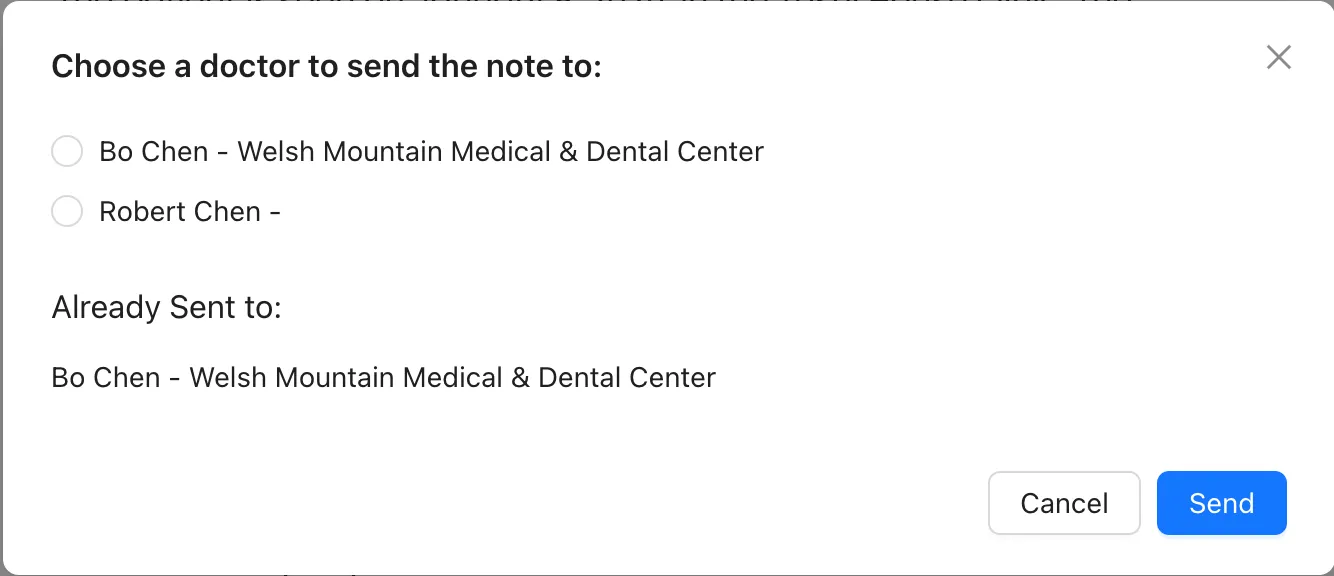
On the Empathia Web Platform, MOAs and nurses can send notes to doctors for further review and completion.
How to Share Notes:
- Navigate to any generated SOAP Note or Intake Summary.
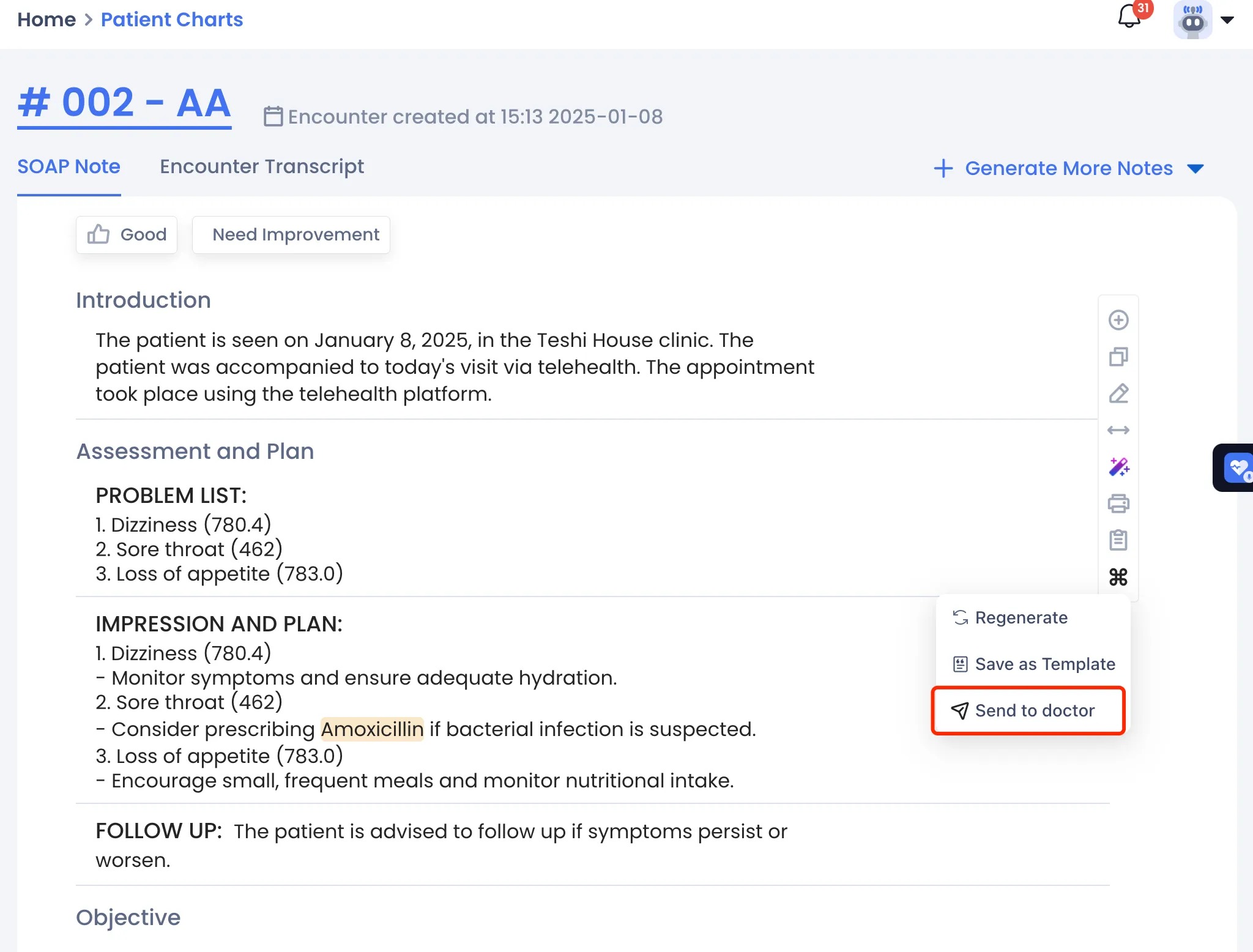
- Click the “Send to Doctor” button.
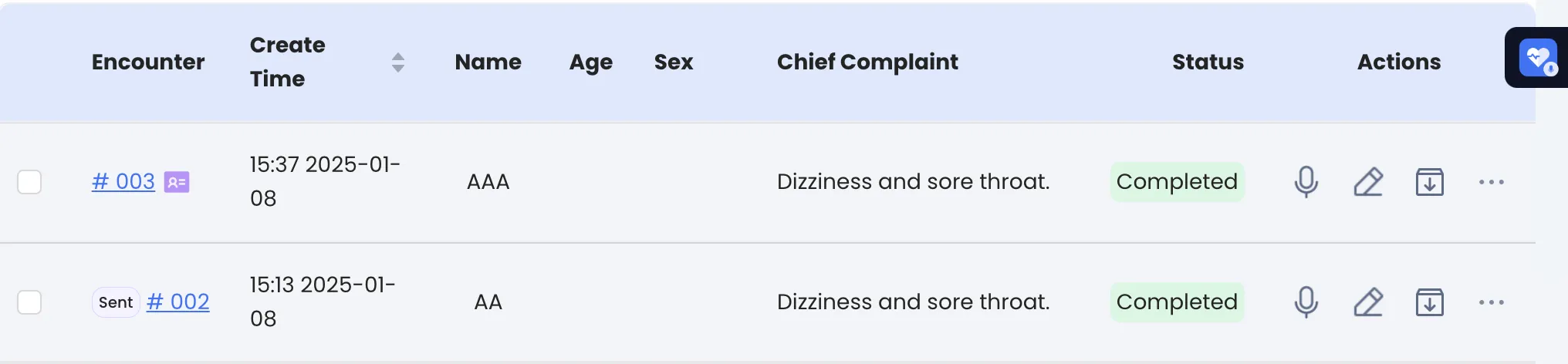
- Once shared, the encounter will display a “Sent” mark on the encounter list.
Tip: Sharing Notes Streamlines Collaboration
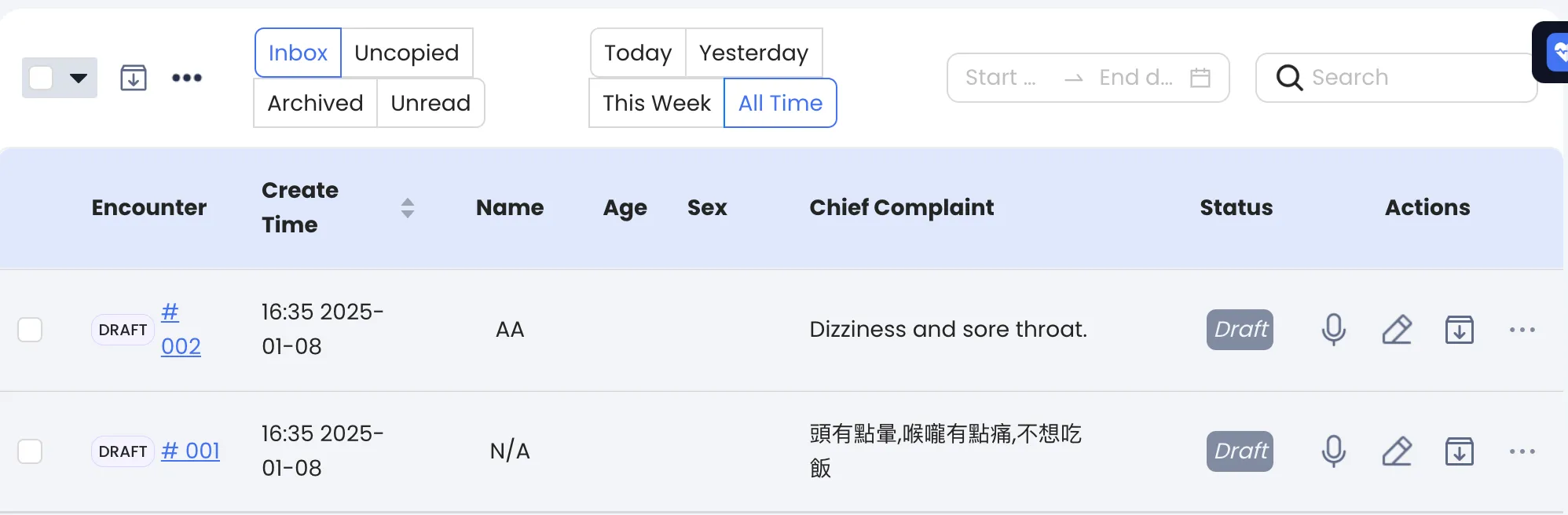
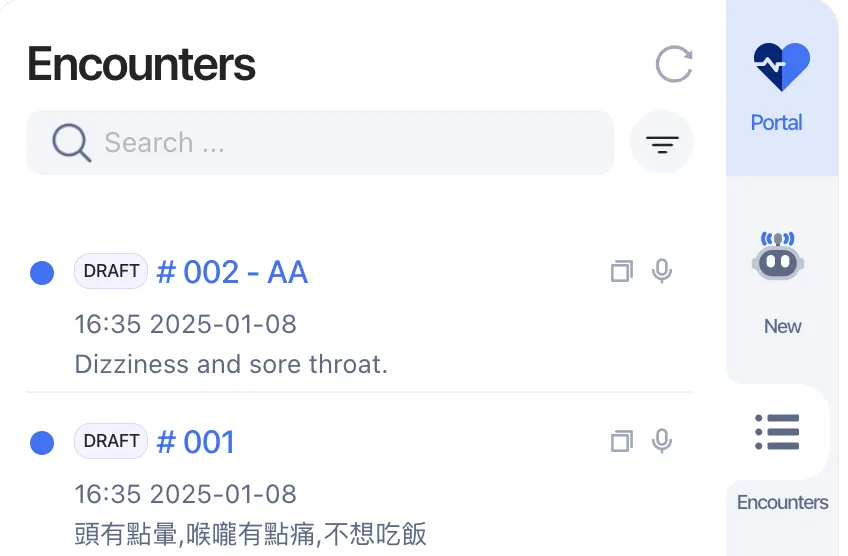
Doctors will receive the shared note as a DRAFT, enabling them to review, supplement, and finalize it with minimal friction.
3. Doctors Handling Draft Encounters
Doctors can manage DRAFT encounters on the Web, App, or Extension.
Reviewing and Completing Draft Encounters:
Supplement Notes:
- Doctors can add audio recordings, additional notes, or attachments to finalize the SOAP note.
- Once a supplementary recording or note is added, the encounter will automatically convert from DRAFT to Formal.
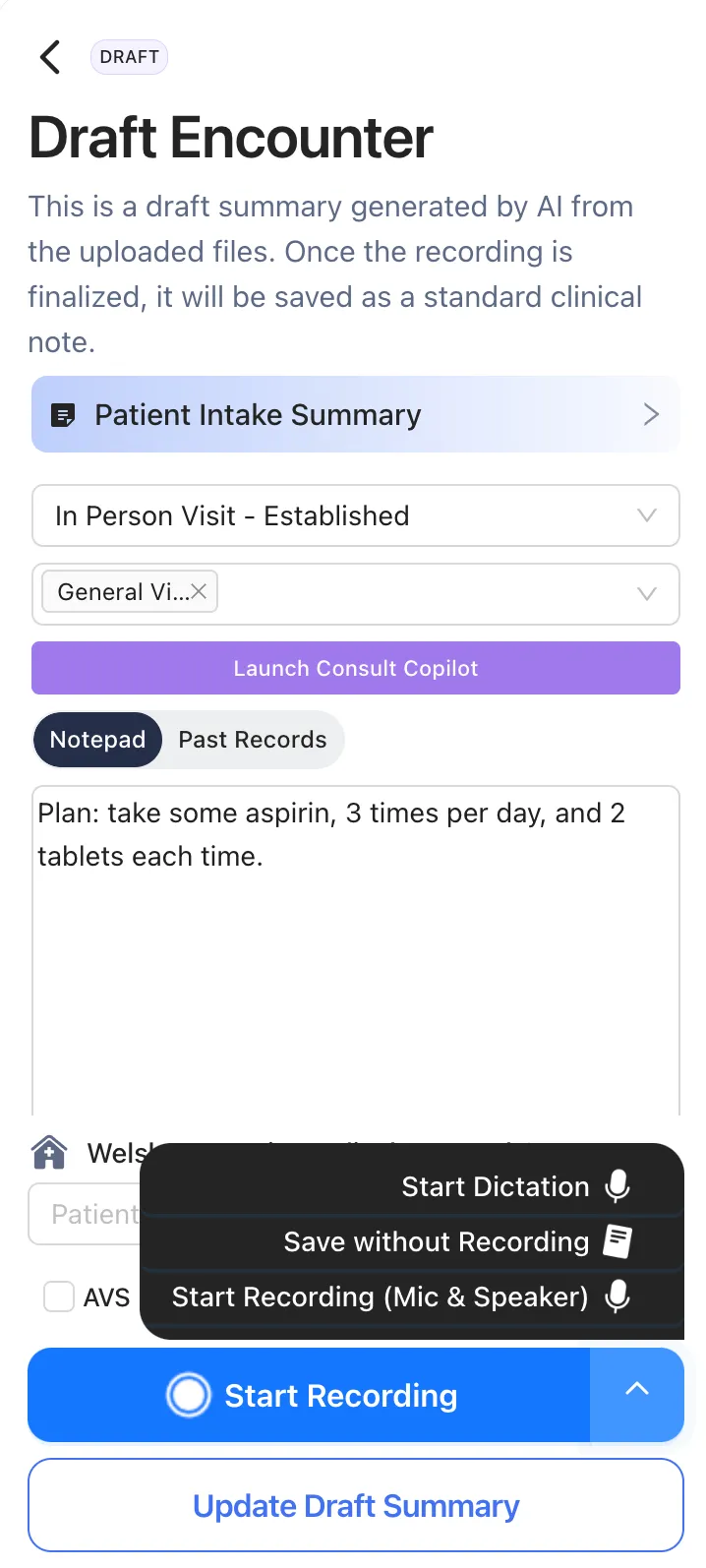
Update Draft Summary:
- If no additional diagnosis is required, doctors can click “Update Draft Summary” to save changes while keeping the encounter in DRAFT stage.
Was this article helpful?
That’s Great!
Thank you for your feedback
Sorry! We couldn't be helpful
Thank you for your feedback
Feedback sent
We appreciate your effort and will try to fix the article