Empathia's Chrome Extension supports integration with any web based EMR. This integration enables bi-directional data flow so you can streamline documentation, automate admin tasks, and stay focused on delivering great care.
Using Empathia's Plexia integration, you can:
- AutoPull: Automatically pull relevant patient data from e-faxes, scanned files, uploaded PDFs, and lab results for summarization. Summarize, or transfer data directly from EMRs using a simple “Scan Page” option.
- AutoFill: Automatically fill in clinical forms, chart notes, and patient data fields in any web-based EMR.
- Capture Page (web/desktop): Capture part or all of your screen and generate instant summaries or transfer data, without extra steps of downloading files. (see here - How to Incorporate Patient Reports with Smart Summary in Empathia AI?)
How it Works
1. Download the Empathia Google Chrome Extension from the Google Chrome Store. After installation, login with your Empathia account to get started. (If it's already installed, please ensure to update to v 2.86.7. Learn how to manually update here)
2. Login to your Plexia account & go to the relevant patient file.
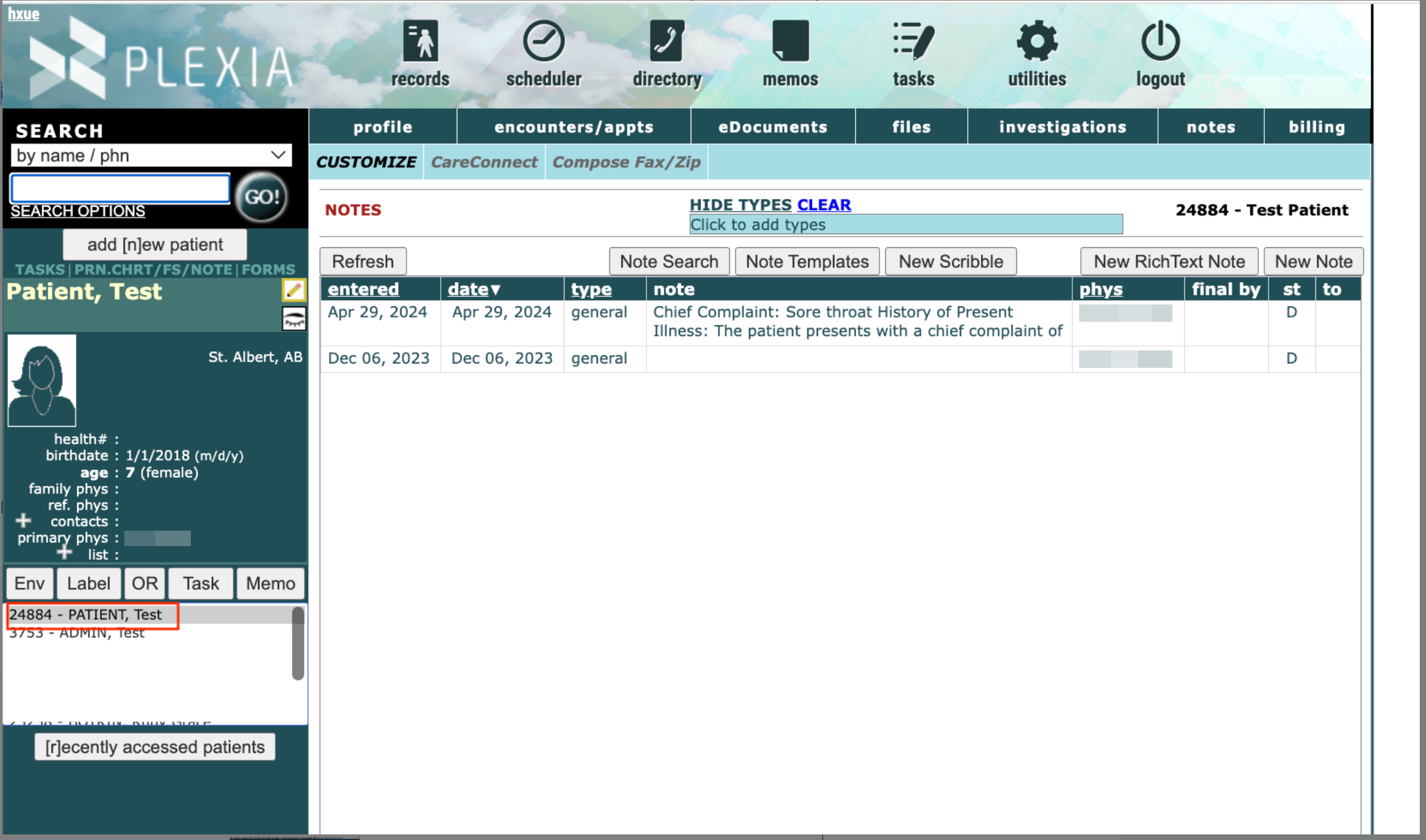
3. Open any relevant documents like e-faxes, incoming reports or referrals & click on EMMA Smart Toolkit from the Chrome extension. 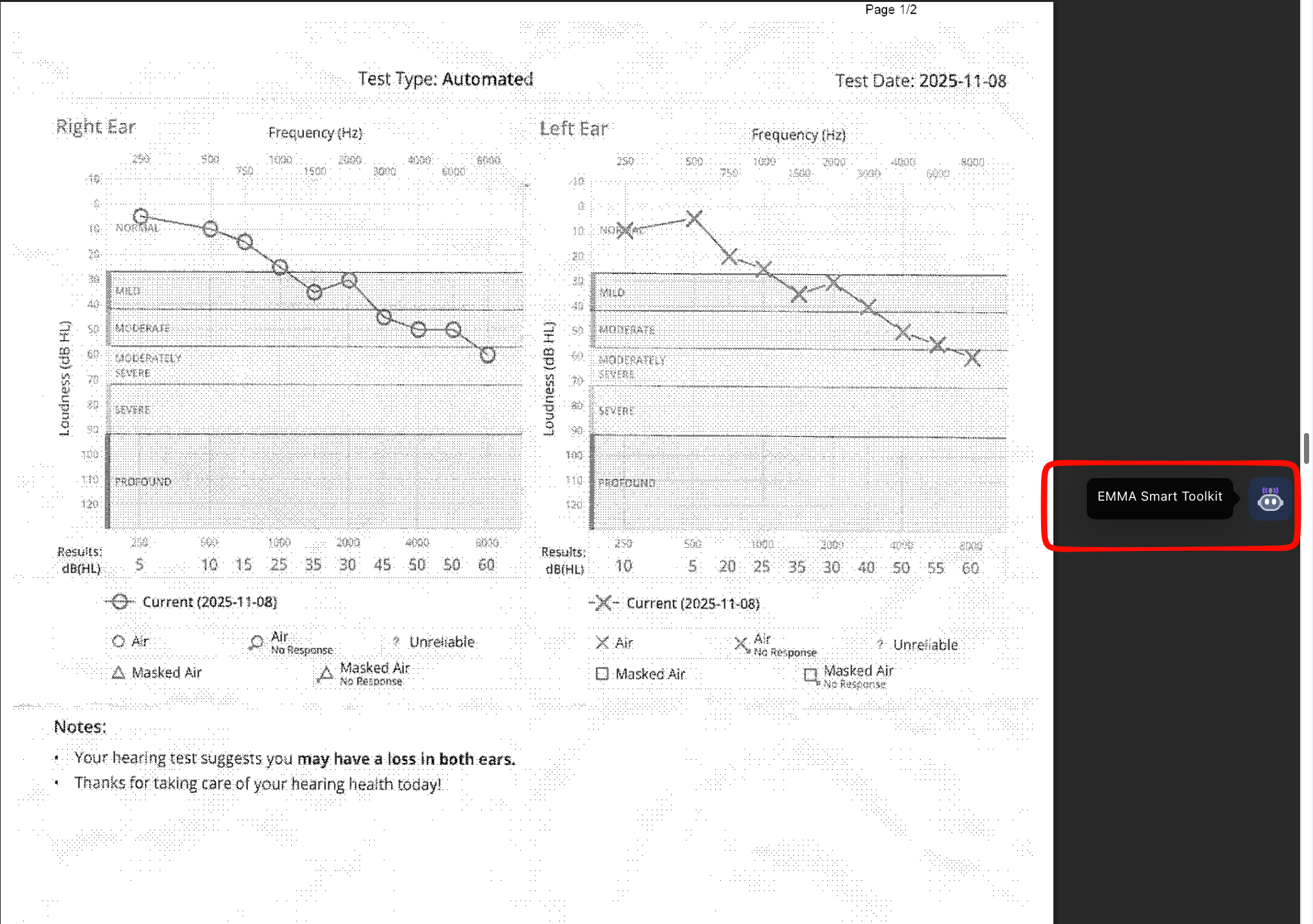
4. Click on Scan Page to receive a summary of the document & then click on Import to Notepad to insert the summary directly into the visit context in the Chrome Extension. 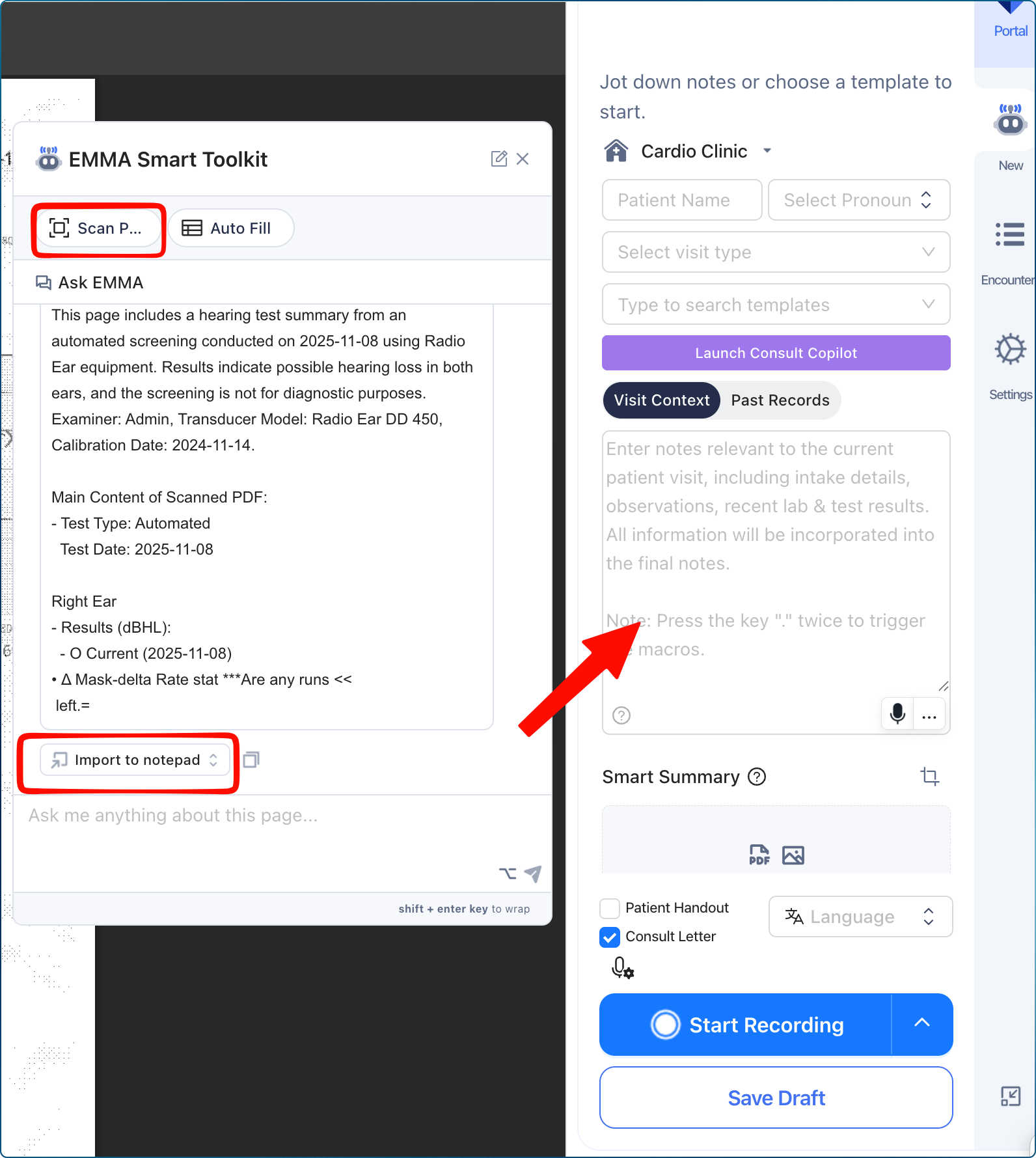
5. This will ensure that the summary is incorporated into your final encounter note.
Additional Features -
1. Fill a Patient Record - Empathia's Plexia Integration supports the MOA workflow by quickly scanning incoming faxes for new patients & filling a new patient profile.
i. Once you open an incoming fax in your Flexbox, click on the Interpret PDF button at the top of the page. You can select a custom range of pages to omit any cover pages or blank pages. 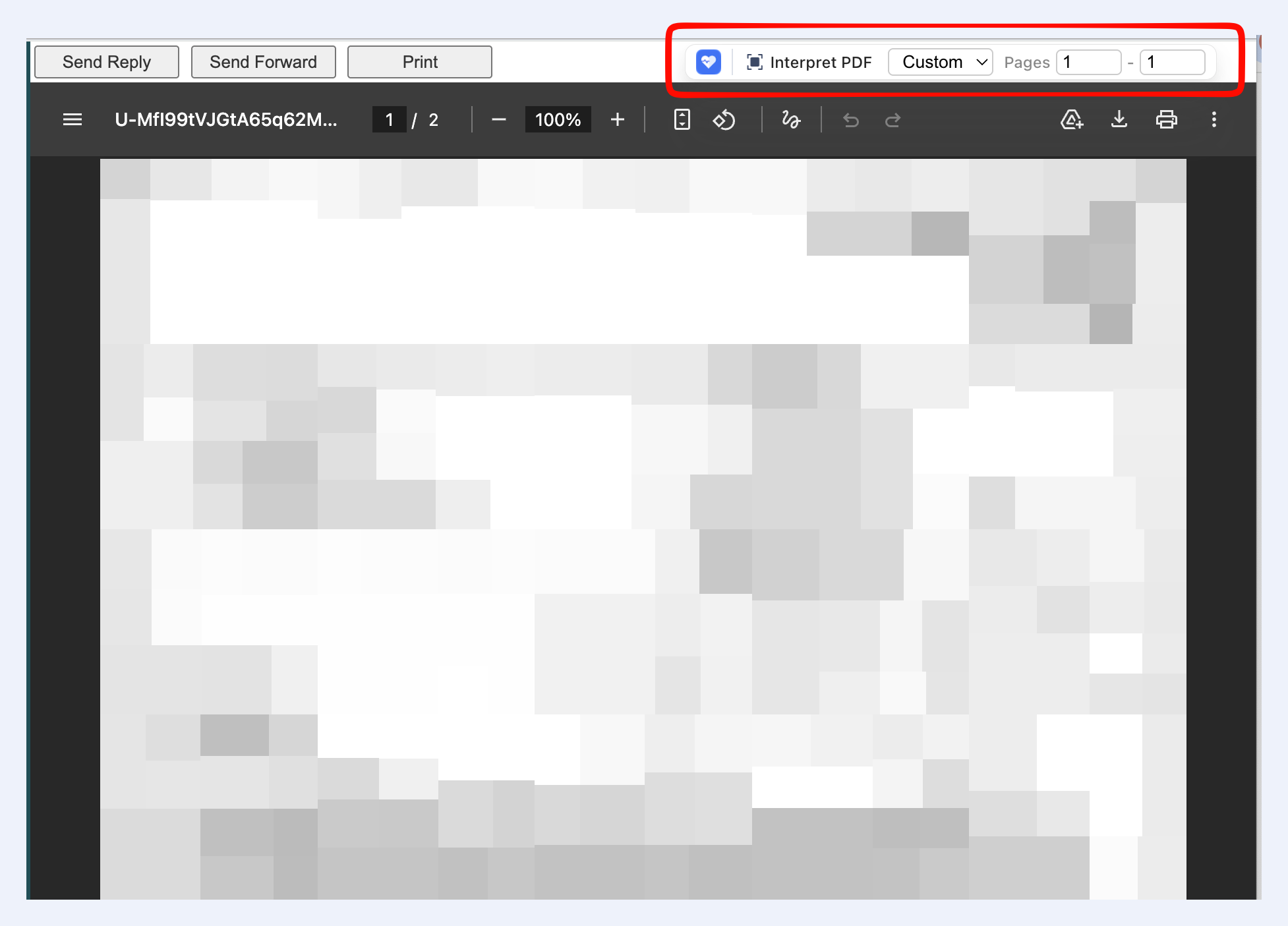
ii. To create a New Patient Record, click on "Add New Patient" and then "Fill Patient Profile"
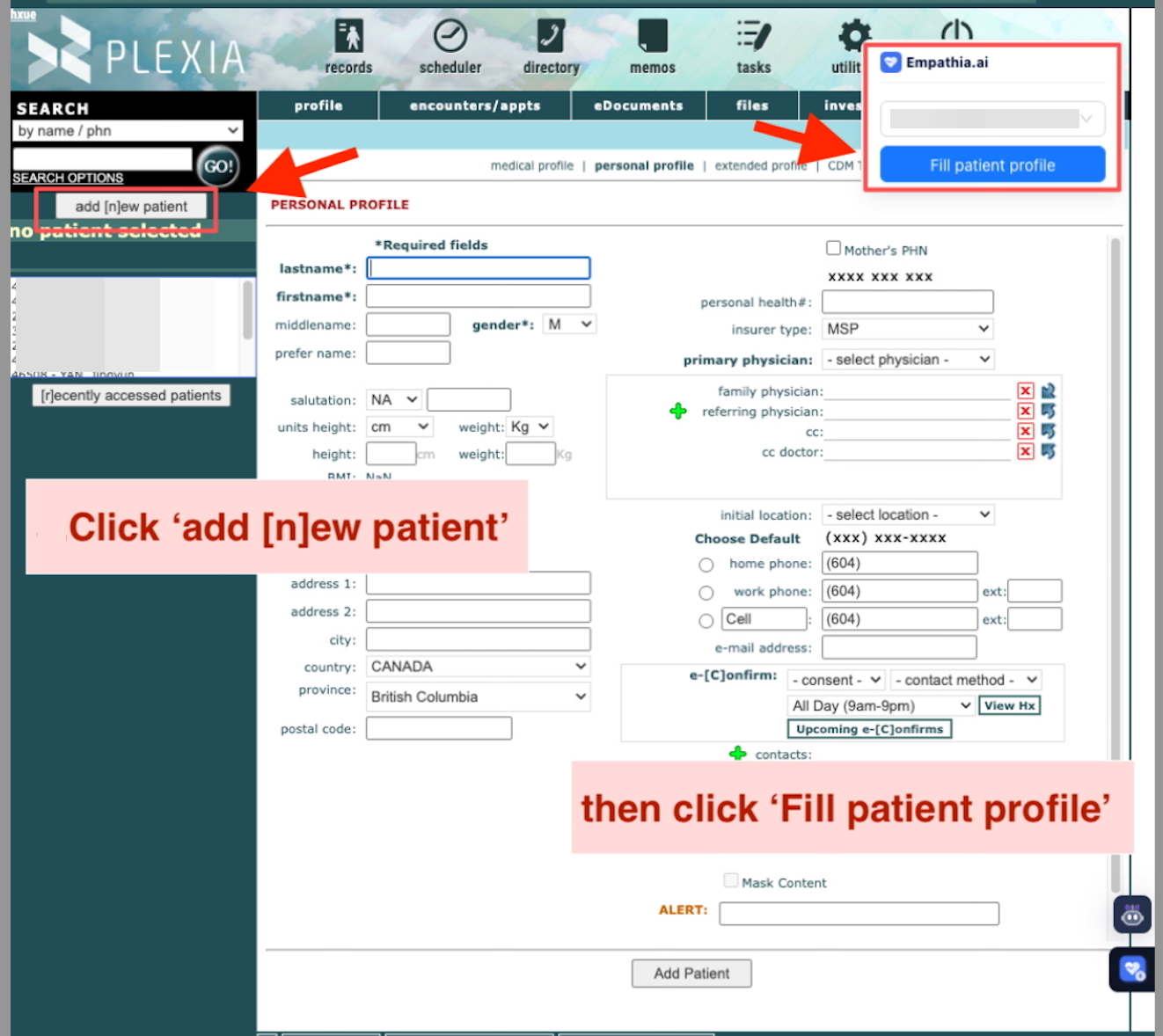
2. Fill Forms, Patient Notes- Empathia's Plexia integration, supports filling forms like lab requisitions, CT requisitions & patient notes using the Autofill feature.
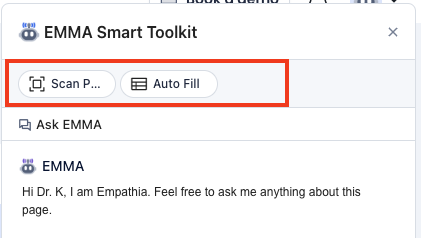
i. Select the Autofill option from the EMMA toolkit
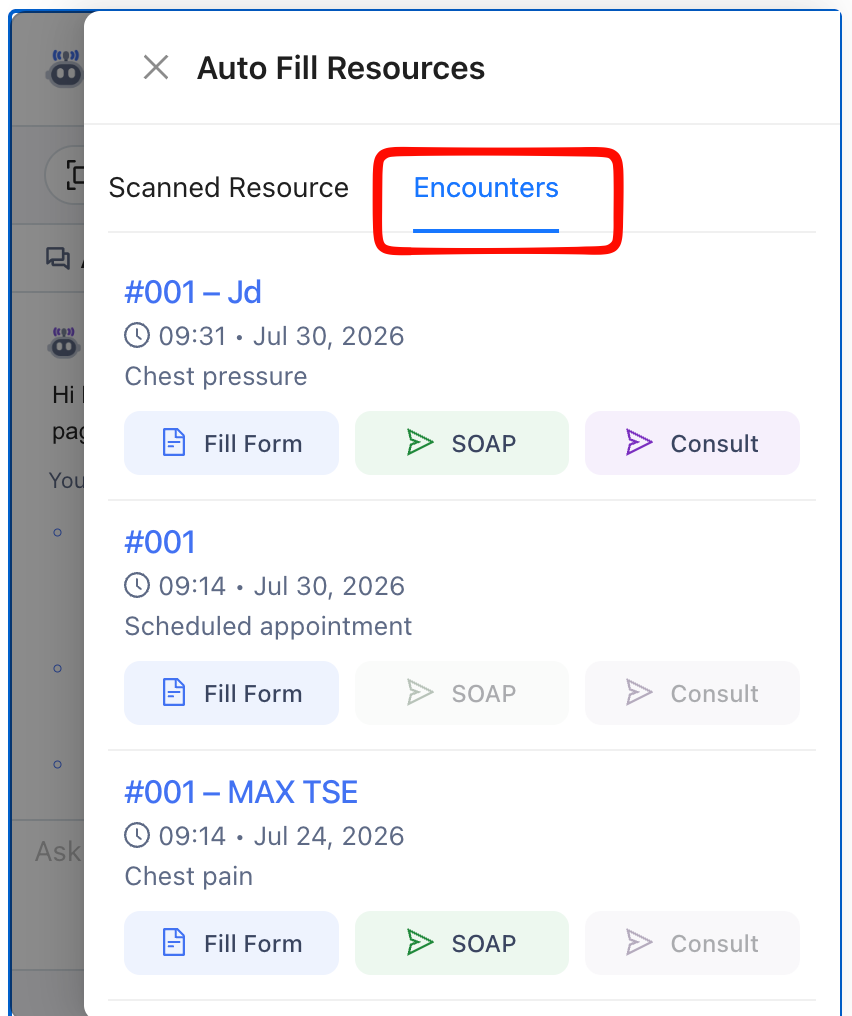
ii. Go to the encounters tab to find a list of all your patient encounters.
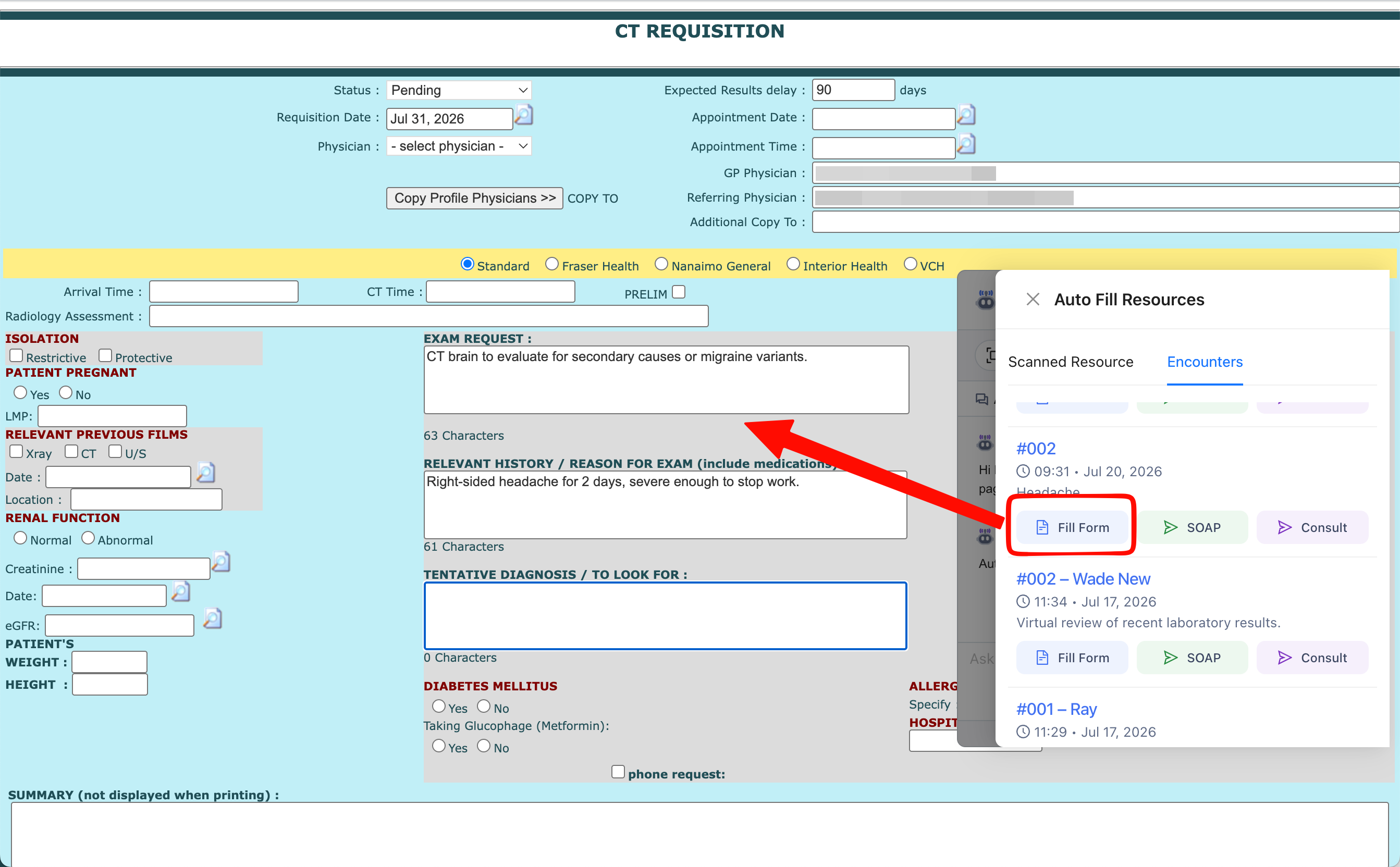
iii. Open the relevant form in Plexia & Click on Fill Form- this will push the information from Empathia directly into your EMR. It fills any relevant fields on the form in your EMR.
iv. You can also open a New Note and push your SOAP or Consult Note directly into the patient chart. 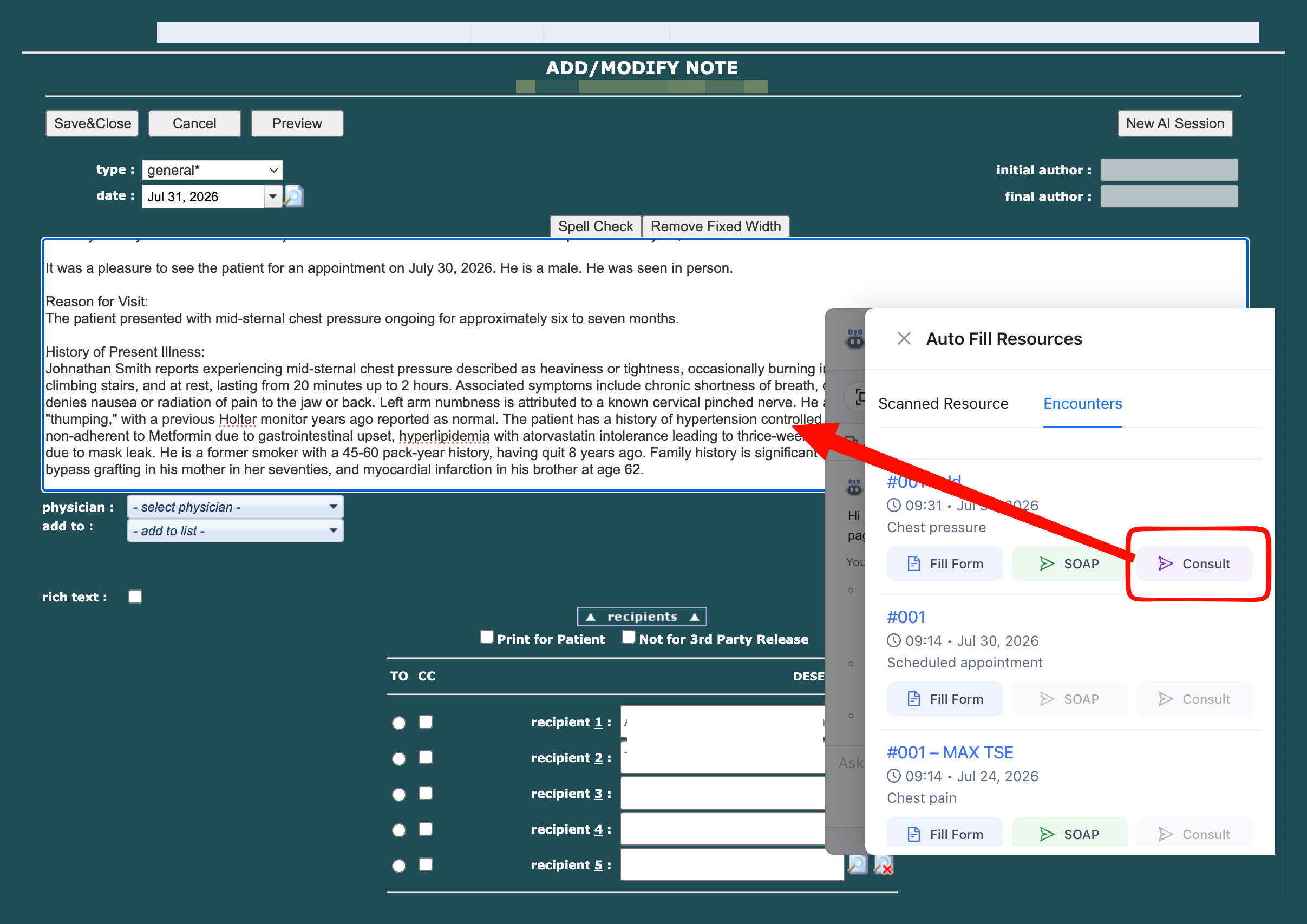
Please let us know if you have any questions or feedback by reaching us directly at support@empathia.ai
Was this article helpful?
That’s Great!
Thank you for your feedback
Sorry! We couldn't be helpful
Thank you for your feedback
Feedback sent
We appreciate your effort and will try to fix the article