Empathia AI offers a range of customizable templates! Using templates will enhance your note quality because the AI can tailor your notes based on your specific requirements. In short, templates help generate a more efficient note! If you forgot to select the template during encounter, you don't have to worry at all.
Below are step by step instructions on how to apply a template before & after note generation.
1: On Web-based Portal
1. Select a template from the drop down menu from the recording modal. If you haven't created any templates yet, you will see a list of curated templates for your specialty in the drop down menu. Click on any to review the contents. 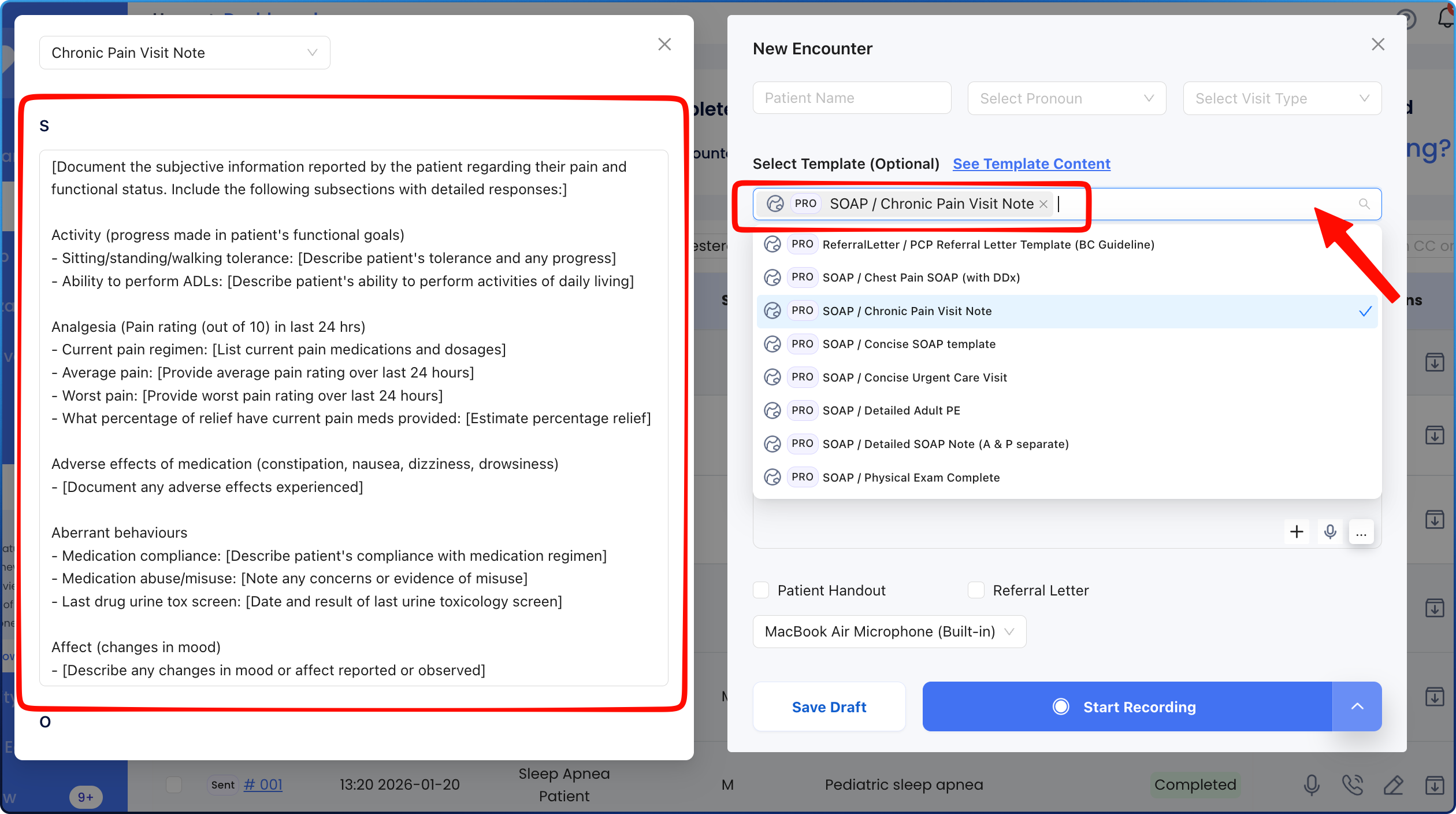
2. You can select templates for different note types - patient handouts, referral letters - this will auto-generate the notes with the templates selected.
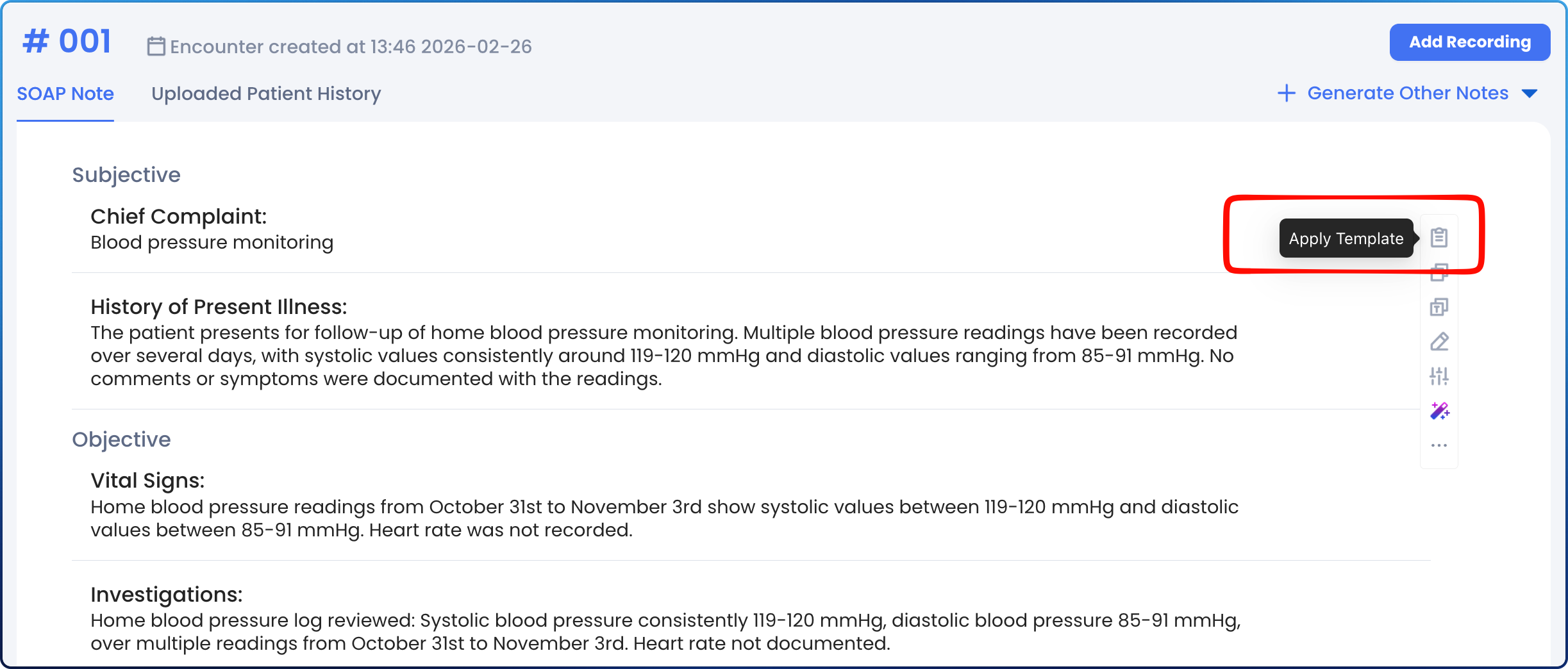
3. After an encounter is complete you can change the template by clicking on "Apply Template" from the tools on the right.
4. A screen will pop up suggesting multiple templates that you can choose from. Select which template you want to apply.
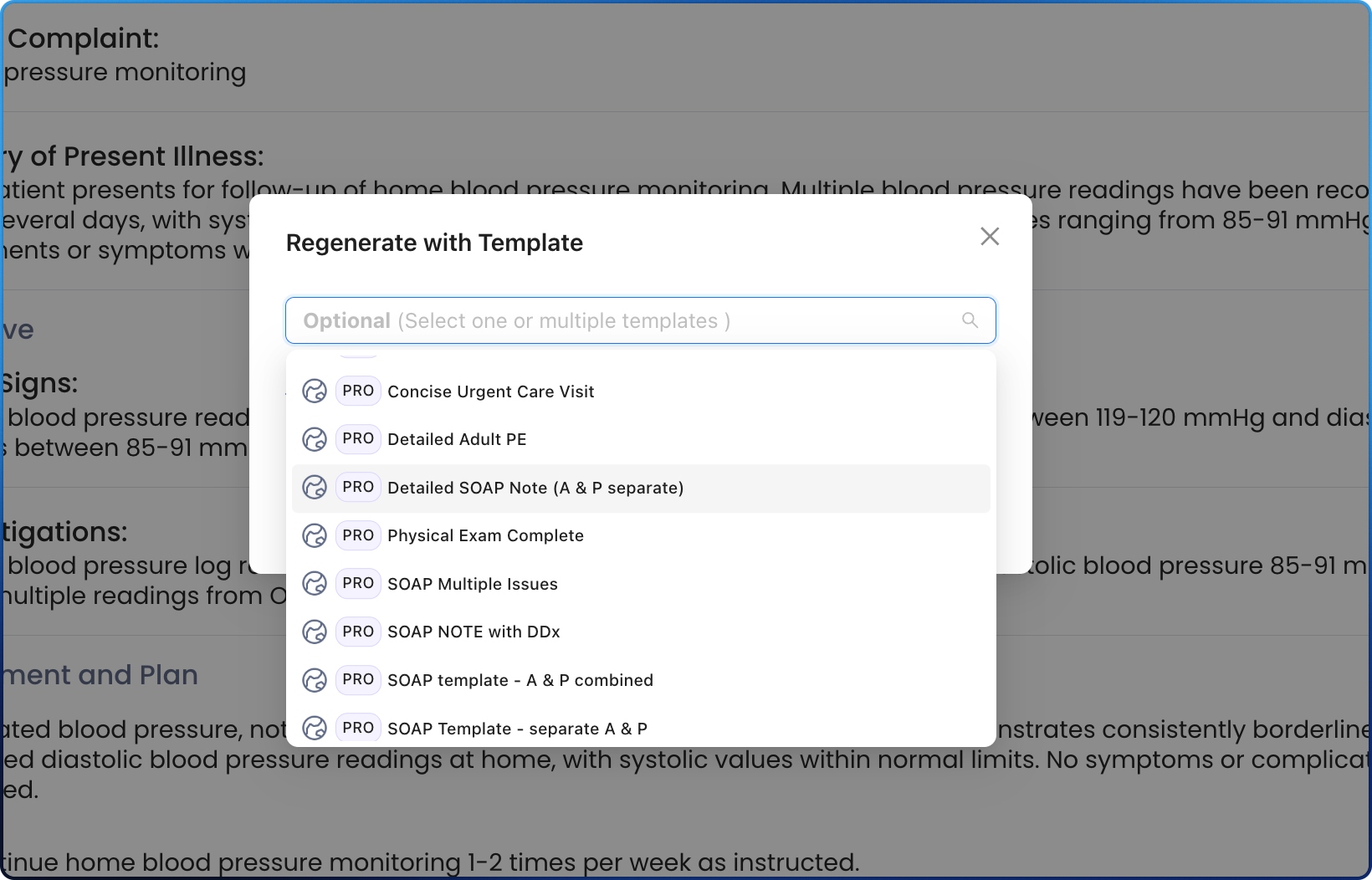
5. A new note will be generated with the new template applied.
2: On the Chrome Extension
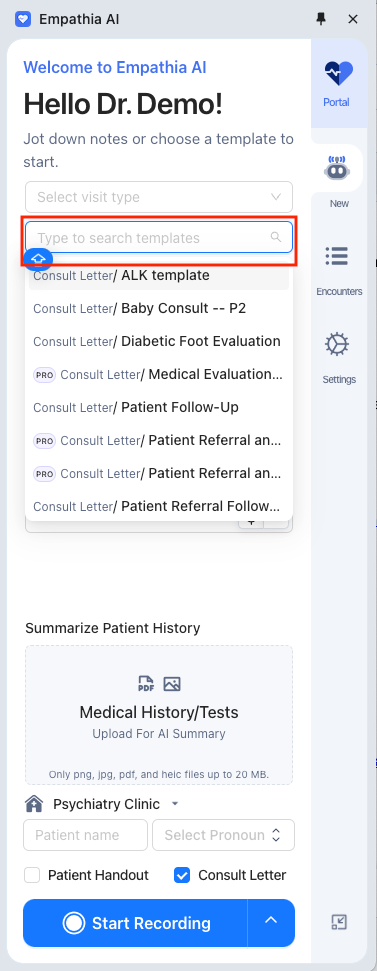
- Select a template from the drop down menu before you start or during your recording.
3. On the App
1. Select a template from the drop down menu before you start or during your recording.
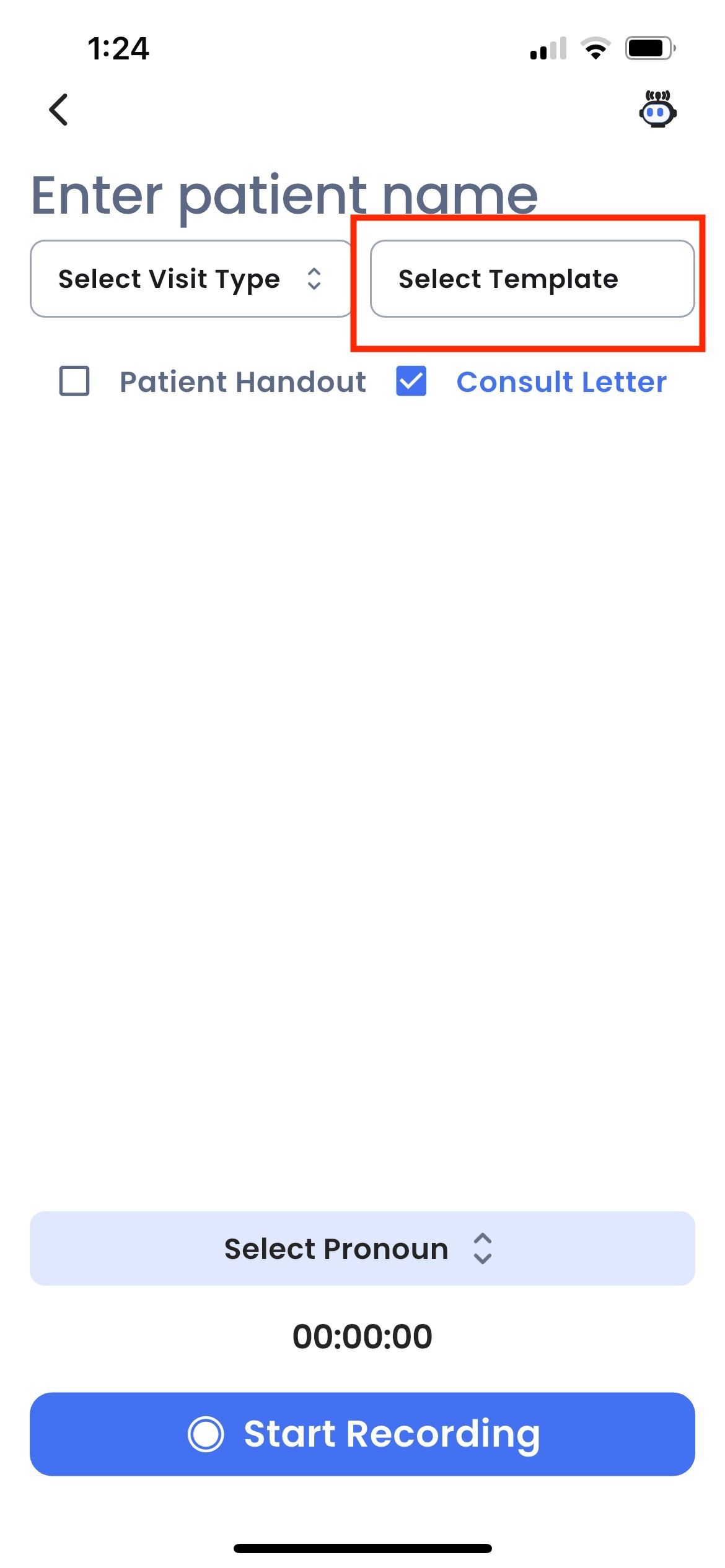
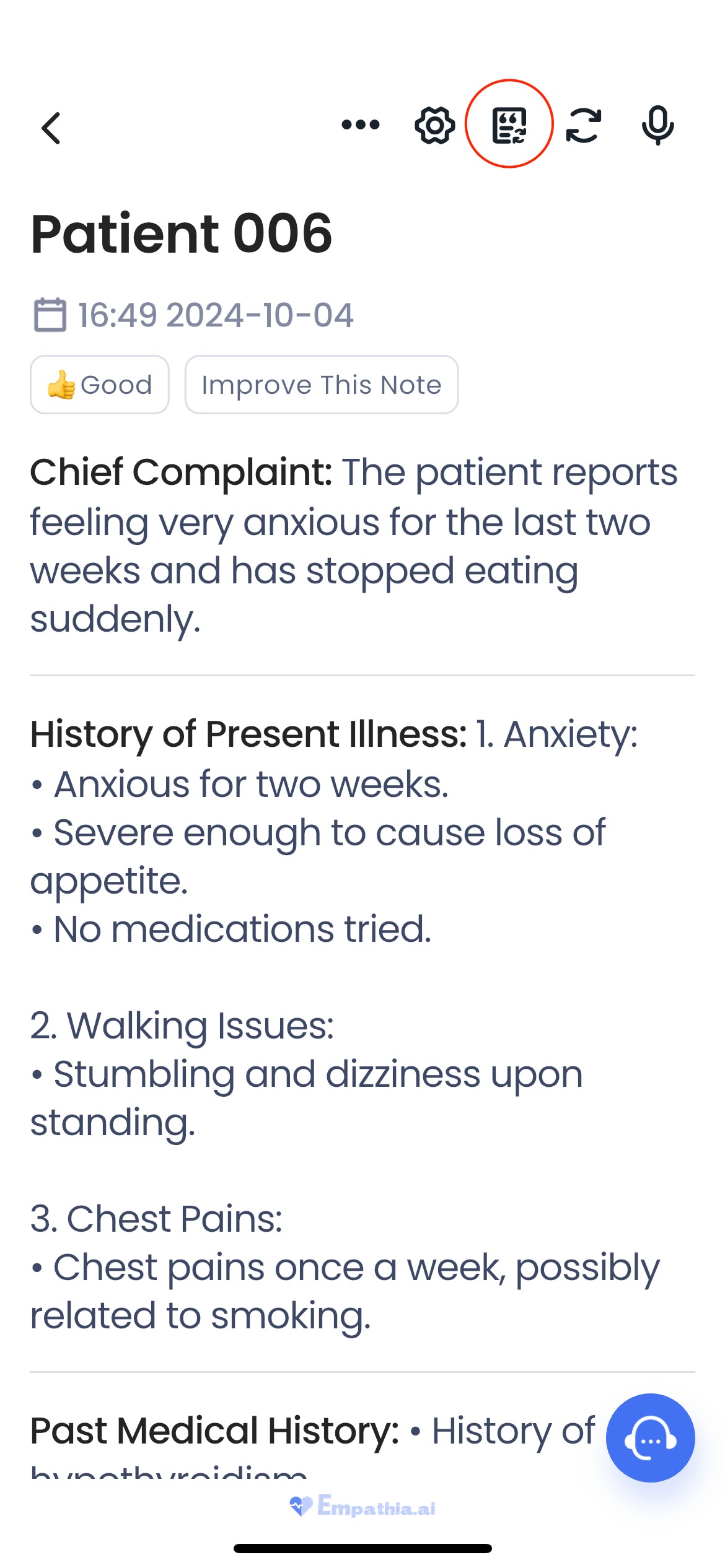
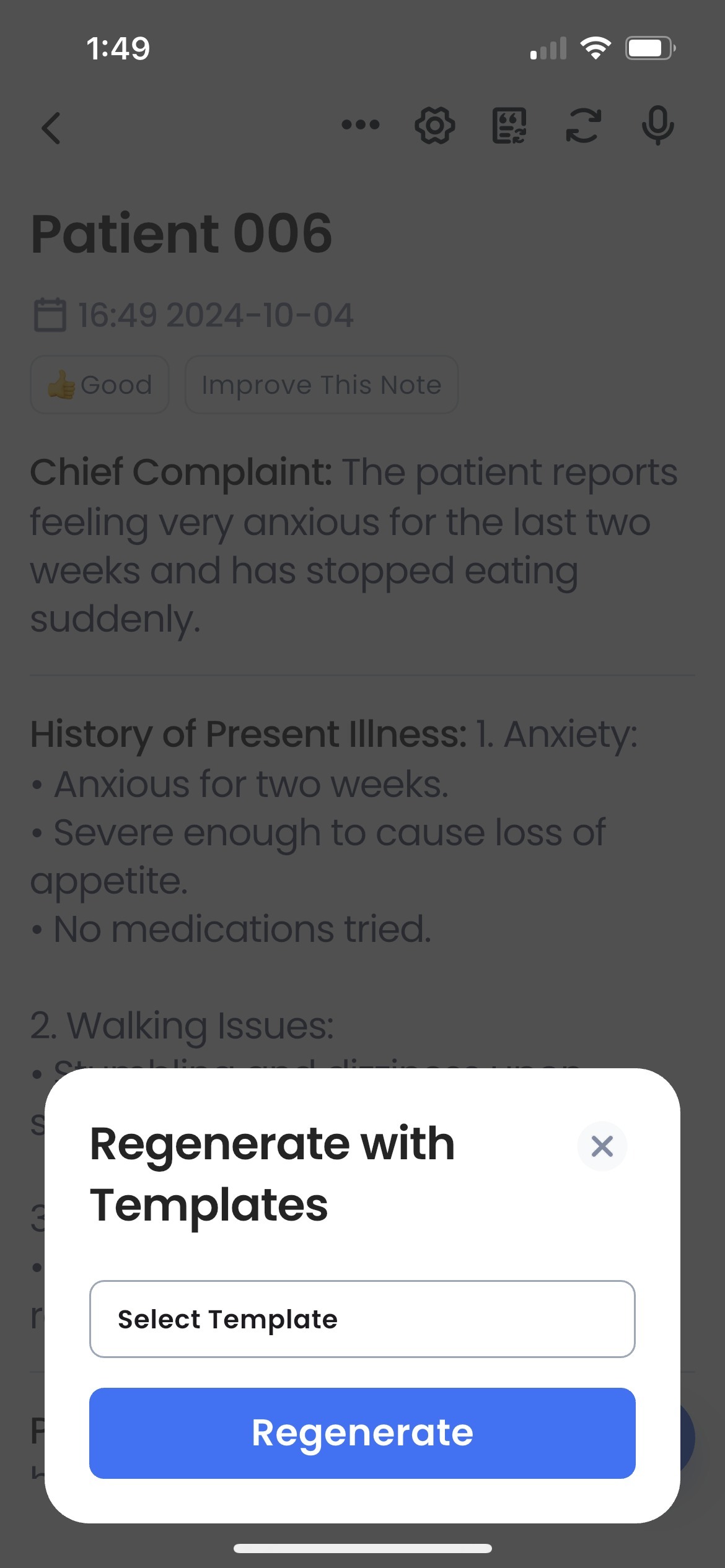
2. After the note is complete, you can change the template by clicking on the icon in the top row to "Regenerate with Templates"
If you have any questions, please contact support@empathia.ai
We are always here to help!
Was this article helpful?
That’s Great!
Thank you for your feedback
Sorry! We couldn't be helpful
Thank you for your feedback
Feedback sent
We appreciate your effort and will try to fix the article